
This guide covers everything in Dispatchable Order Messaging for WooCommerce, the free plugin: installing it, setting it up, what each feature does, and how to fix the problems merchants most often run into. It describes version 0.1.0.
First, the basic idea. The free plugin never sends a WhatsApp message by itself. Every message it prepares opens in WhatsApp with the text already written, and you (or your customer) tap Send. This applies to single orders and bulk batches alike. You don’t need a Meta Business account, an API key or any outside service. Messages are built on your own site and opened as standard wa.me links.
1. Requirements
- WordPress 6.6 or newer
- WooCommerce 8.2 or newer, installed and active
- PHP 8.1 or newer
- A WhatsApp number for your store. A regular WhatsApp account or the WhatsApp Business app both work. You don’t need the WhatsApp Business API.
The plugin supports WooCommerce High-Performance Order Storage (HPOS) and legacy order storage. It also supports both the classic (shortcode) cart and checkout and the WooCommerce Cart and Checkout blocks, so you don’t need to change anything about how your store is built.
2. Installing the plugin
- Make sure WooCommerce is installed and active.
- In your WordPress admin, go to Plugins → Add New Plugin and search for Dispatchable Order Messaging.
- Click Install Now, then Activate.

Once it’s active, a Settings link appears in the plugin’s row on the Plugins screen. It takes you straight to WooCommerce → Settings → WhatsApp.
If your site doesn’t meet the requirements above, the plugin won’t break anything. It stays inactive and shows a red “Dispatchable Order Messaging is not running.” notice listing exactly what’s missing, such as WooCommerce not being active or a WordPress or WooCommerce version that’s too old. Fix the item listed and the notice goes away.

3. Two directions: your number vs. your customer’s number
The plugin works in two directions, and each one uses a different phone number:
- Customer → you. The WhatsApp buttons on your product page, cart page, order-received page and order emails open a chat with your store’s own WhatsApp number, the one you enter under General settings.
- You → customer. The Notify Customer actions on your orders open a chat with the customer’s own phone number, taken from the order’s billing phone. Your store number isn’t used here.
If you remember one thing from this guide, make it this. It explains most “why is this going to the wrong number?” questions.
4. Setup: your WhatsApp number (General)
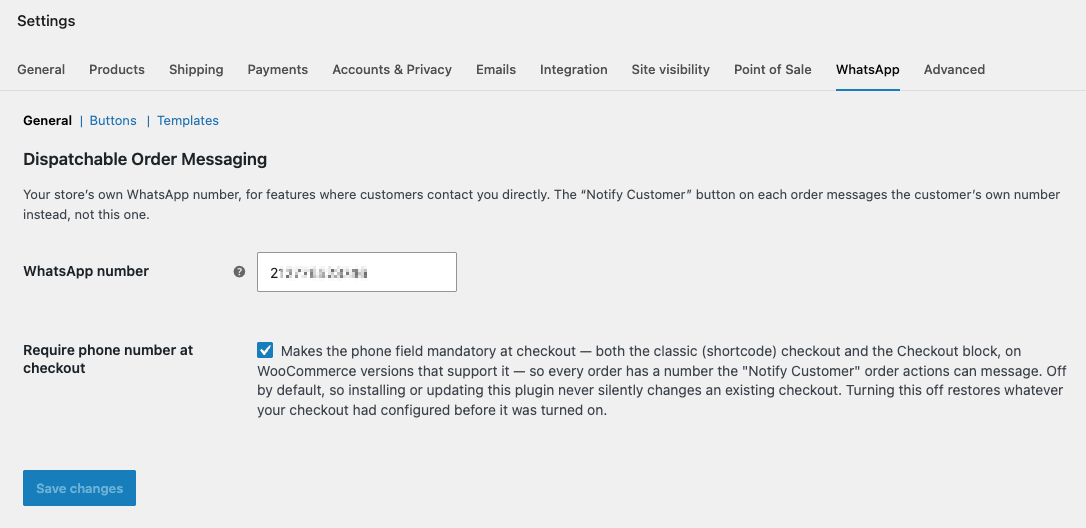
Go to WooCommerce → Settings → WhatsApp. The tab has three sections, linked just under the tab name: General, Buttons and Templates. General opens first.
WhatsApp number
Enter your store’s WhatsApp number with its country code. For example, 212612345678 for a Moroccan number or 15551234567 for a US number. Spaces, dashes, brackets and a leading + are ignored, so +212 612-345678 works too.
Two things to watch for:
- Don’t use your local format.
0612345678has no country code, so WhatsApp can’t tell which country it’s in. Customer chats would open to the wrong number or fail. - If this field is empty or not a valid number, the customer-facing buttons don’t appear. The plugin hides a button rather than showing one that doesn’t work. A valid number has 8 to 15 digits once formatting is removed.
Require phone number at checkout
The Notify Customer actions can only message customers who gave a phone number at checkout. If your checkout treats phone as optional, some orders won’t have one. Tick this box to make the phone field mandatory.
- It works on both the classic checkout and the Checkout block. The field shows as required (no “(optional)” label), and an order can’t be placed without it.
- It’s off by default, so installing the plugin never changes your checkout without you choosing it.
- When you turn it off again, your checkout’s phone field goes back to whatever it was set to before you turned it on.
- It only affects new orders. Existing orders without a phone number stay that way.

Important: if you plan to deactivate the plugin later, turn this setting off and save first. See Deactivating or deleting the plugin.
Click Save changes when you’re done.
5. Setup: customer-facing buttons (Buttons)
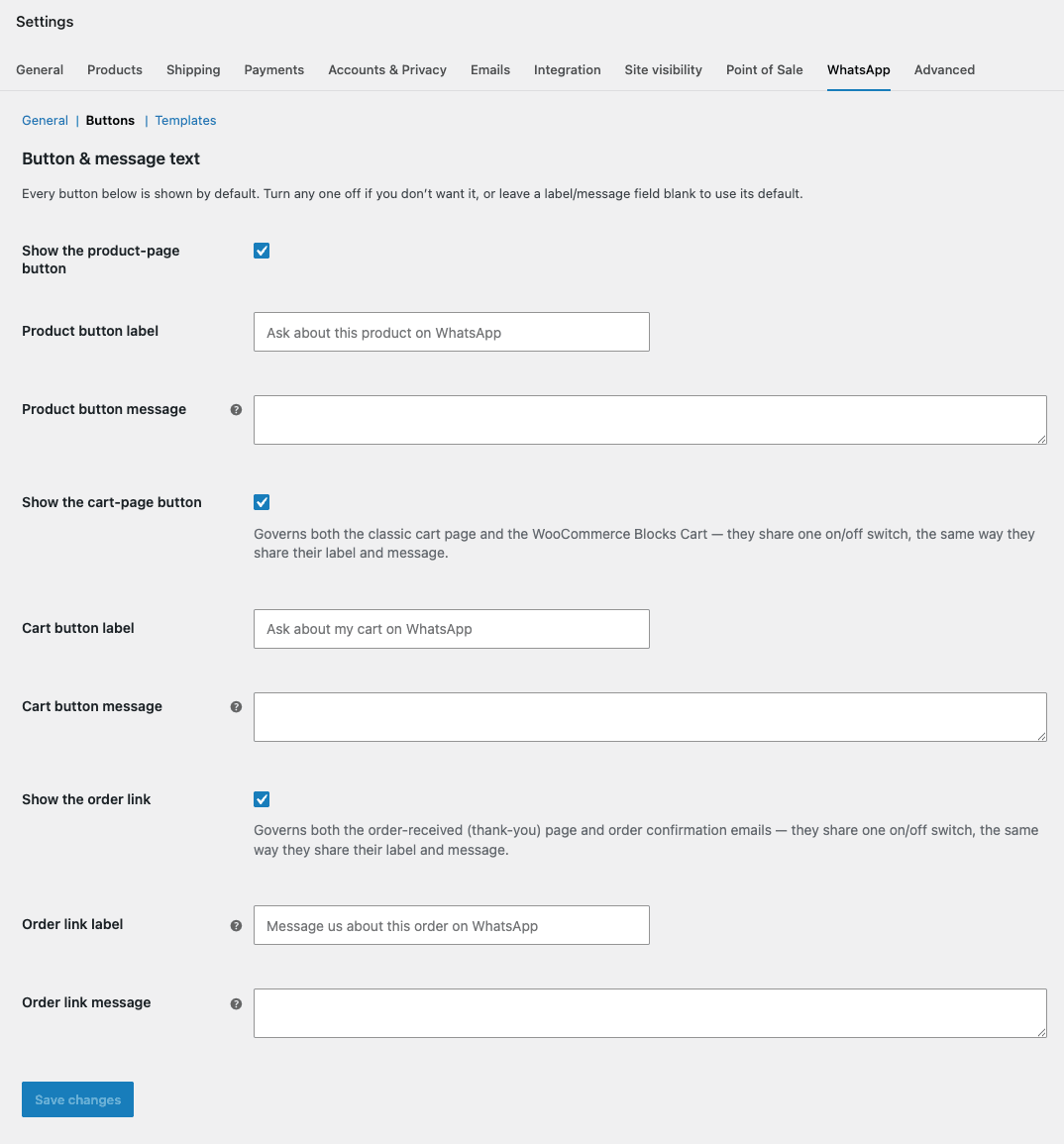
Click Buttons under the WhatsApp tab. This section controls the three buttons your customers can use to message you. All three are on by default. For each one, you can turn it off, change its label and change the message it pre-fills. If you leave a label or message blank, the plugin uses the default shown below.
Product-page button
- Show the product-page button: on/off.
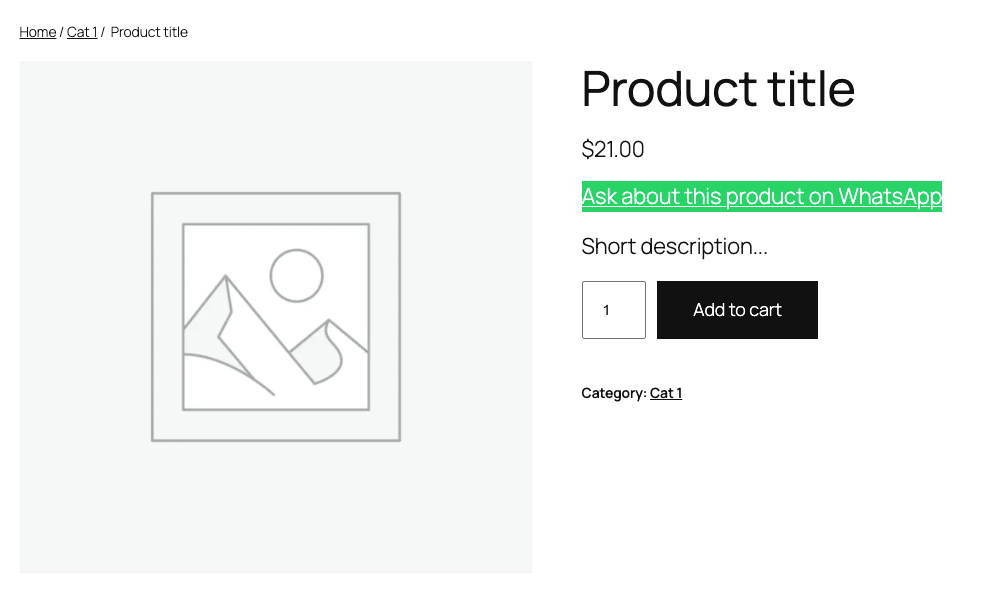
- Product button label: default “Ask about this product on WhatsApp”.
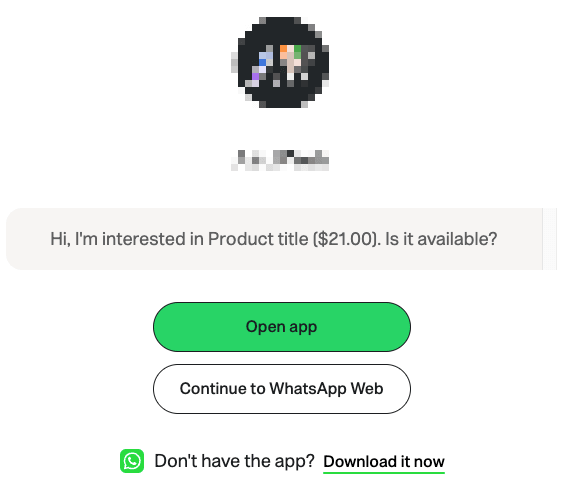
- Product button message: default “Hi, I’m interested in [product name] ([price]). Is it available?”
Your own message can use two placeholders: {product_name} and {price}. {price} is the product’s current price, including any sale price.
A product with a price range, such as a variable product whose variations cost different amounts, has no single price. The default message leaves the price out in that case. If you write your own message containing {price}, it’s left blank for those products, so adjust your wording if you sell variable products.
Cart-page button
- Show the cart-page button: on/off. One switch covers both the classic cart page and the Cart block.
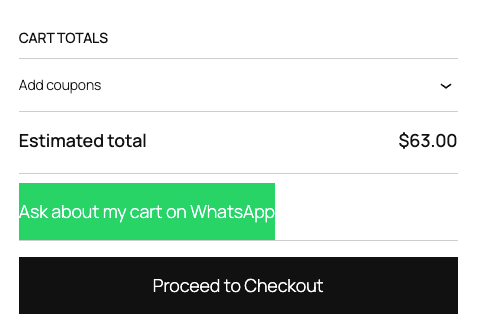
- Cart button label: default “Ask about my cart on WhatsApp”.
- Cart button message: default “Hi, I have a question about my cart.”
The cart message has no placeholders, on purpose. The Cart block updates quantities and totals without reloading the page, so a cart summary written into the message could already be out of date when the customer taps the button. A plain message can’t go stale. The button only shows when the cart has something in it.
Order link
- Show the order link: on/off. One switch covers both the order-received (“thank you”) page and customer order emails.
- Order link label: default “Message us about this order on WhatsApp”.
- Order link message: default “Hi, I have a question about my order #[order number].”
Your own message can use the order placeholders listed in the next section. The default only includes the order number, deliberately. See Privacy and data for why.
6. Setup: order message templates (Templates)
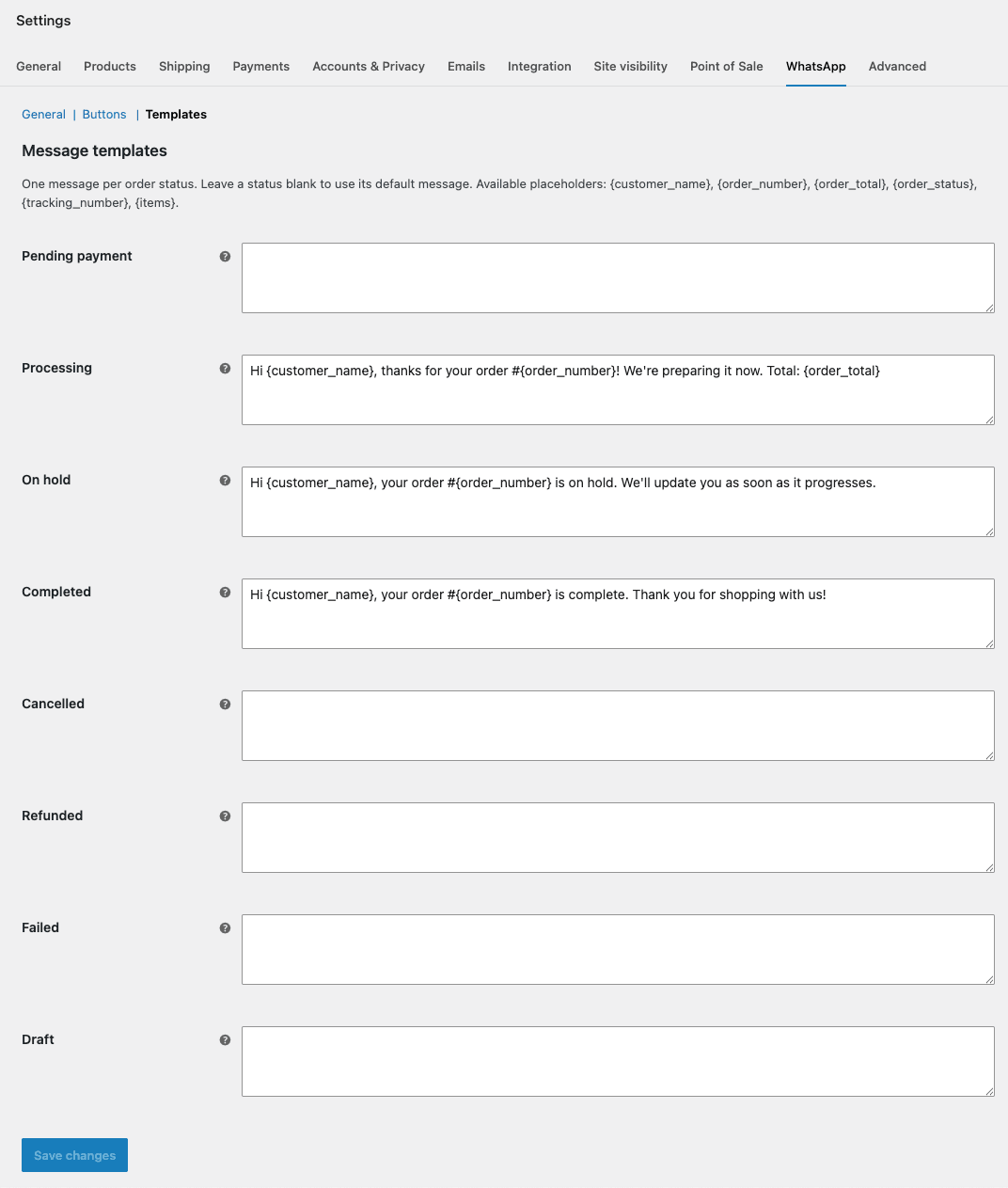
Click Templates under the WhatsApp tab. Here you write the message the plugin prepares when you notify a customer about an order. There’s one text box for each order status your store uses, including custom statuses added by other plugins.
Which template is used
When you click Notify Customer, the plugin uses the template for the order’s current status at that moment. If an order is “Processing”, you get the Processing template. Change the status first if you want a different message.
Default templates
Three statuses come with a ready-to-use message, so you can start notifying customers without writing anything:
- Processing: “Hi {customer_name}, thanks for your order #{order_number}! We’re preparing it now. Total: {order_total}”
- Completed: “Hi {customer_name}, your order #{order_number} is complete. Thank you for shopping with us!”
- On hold: “Hi {customer_name}, your order #{order_number} is on hold. We’ll update you as soon as it progresses.”
Any other status left blank uses a general message: “Hi {customer_name}, here’s an update on your order #{order_number} ({order_status}). Total: {order_total}.”
Placeholders
These placeholders work in order templates and in the order link message:
{customer_name}: the billing first and last name. If the order has no name, it shows “Customer”.{order_number}: the order number as shown in WooCommerce.{order_total}: the order total with its currency, e.g. 250.00 MAD.{order_status}: the status name, e.g. Processing.{tracking_number}: empty by default. WooCommerce has no built-in tracking field. This placeholder only fills in if a shipment-tracking plugin or custom code provides the value (see For developers).{items}: the ordered products, one per line, e.g. – 2× Blue T-shirt.
Line breaks you type in a template are kept in the WhatsApp message. Placeholders must match exactly, curly brackets included. A misspelled placeholder, or one from a different section such as {product_name} in an order template, appears as plain text in the message.
Click Save changes when you’re done.
7. Notifying one customer from an order
- Open an order under WooCommerce → Orders.
- In the order details box, under the order’s general details, click Notify Customer via WhatsApp (+number). The button shows the customer’s phone number exactly as it will be used.
- WhatsApp opens in a new tab, or the WhatsApp app opens, with the message for the order’s current status already written.
- Check the message and tap Send in WhatsApp.
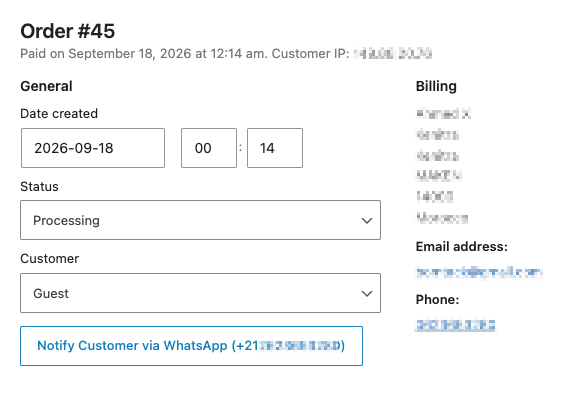
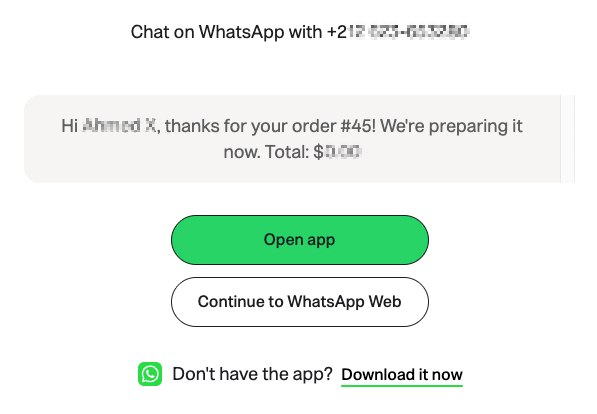
Check the number on the button before you click. Customers type phone numbers in all sorts of formats, and the plugin’s conversion to an international number is a best guess (see How customer phone numbers are handled). If the number looks wrong, fix the order’s billing phone first.
If the order has no phone number the plugin can use, you’ll see “This order has no usable phone number on file, so it cannot be notified via WhatsApp.” instead of the button.
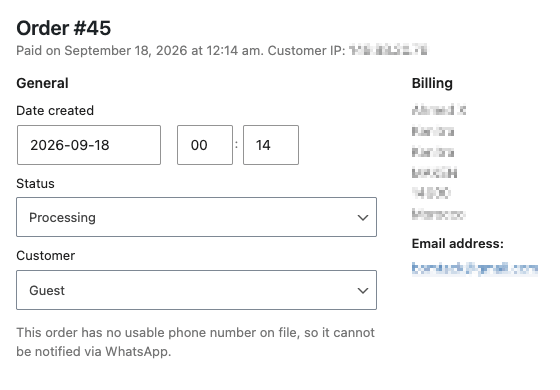
About the log: for a single order, the notification is recorded in the WhatsApp Log as soon as you click the button, before WhatsApp opens. The plugin can’t see whether you actually pressed Send in WhatsApp.
8. Notifying several customers in a row (bulk)
Bulk notify is for working through a batch of orders, for example confirming every new cash-on-delivery order from this morning. It takes you through the orders one at a time, and you still send each message yourself in WhatsApp. It saves you opening each order separately. It doesn’t send anything in the background.
Start a batch
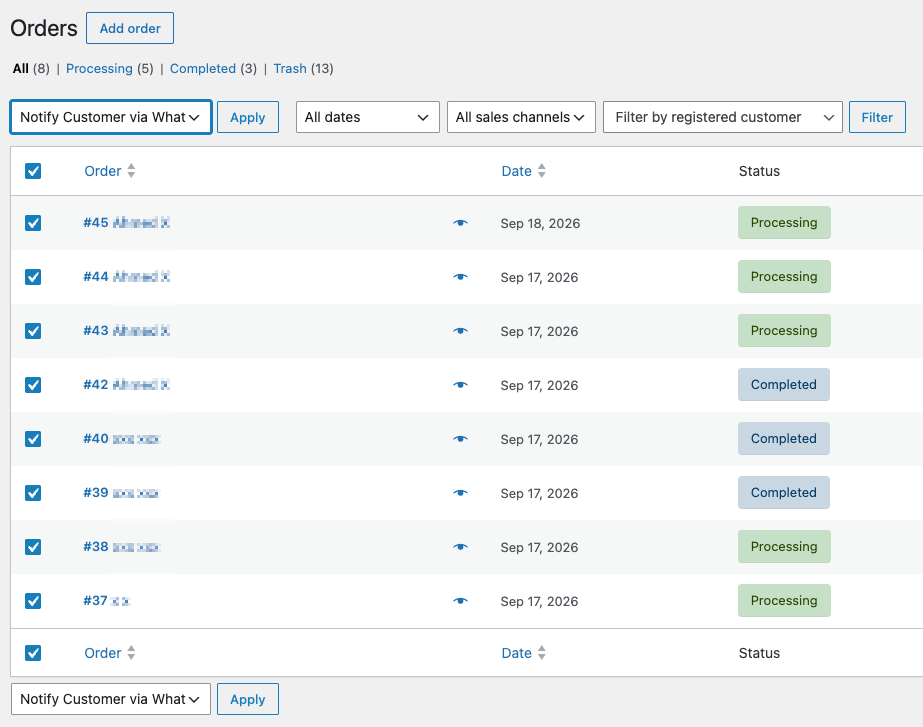
- Go to WooCommerce → Orders.
- Tick the orders you want to notify.
- From the Bulk actions dropdown, choose Notify Customer via WhatsApp and click Apply.
Work through the batch
You’re taken to the Notify Customers via WhatsApp screen. It shows one order at a time:
- How many orders are left, including the current one.
- The order number and the full message that will be sent, so you can read it before opening WhatsApp.
- Open WhatsApp (+number): opens the pre-filled chat in a new tab. Send it there, then come back to this tab.
- Sent — Next: marks this order as sent in the log and moves to the next order.
- Skip this order: moves on without logging anything.
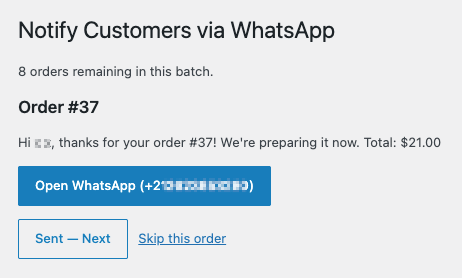
Unlike single-order notify, bulk only logs a message when you click Sent — Next. Clicking Open WhatsApp doesn’t record anything, so you can open it again if you close the tab by mistake.
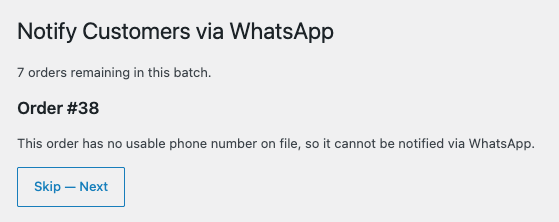
If an order in the batch has no usable phone number, the screen says so and shows a Skip — Next button. Orders deleted since you started the batch are skipped automatically.
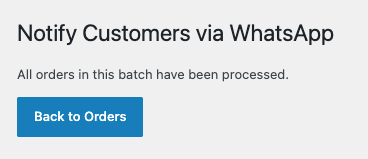
When you reach the end, you’ll see “All orders in this batch have been processed.” and a Back to Orders button.
Batches expire after 15 minutes of inactivity
A batch stays open for 15 minutes after your last click. Every Sent — Next or Skip resets the timer, so working through a long batch is fine. If you leave it for more than 15 minutes, you’ll see “This notification batch has expired or could not be found.” Go back to the Orders list, select the orders you haven’t done yet and start a new batch. Orders you already marked as sent are still in the log.
9. What your customers see
Each of these buttons opens a chat with your store’s number with a message already written. They only appear if your WhatsApp number is valid and the button is switched on under Buttons.
Product page
A green WhatsApp button appears in the product summary area, below the price and Add to cart button.
Cart page
On the Cart block, the button appears below the order totals, above Proceed to Checkout. On the classic cart page, it appears after the cart totals. It’s hidden when the cart is empty.
Order-received (“thank you”) page
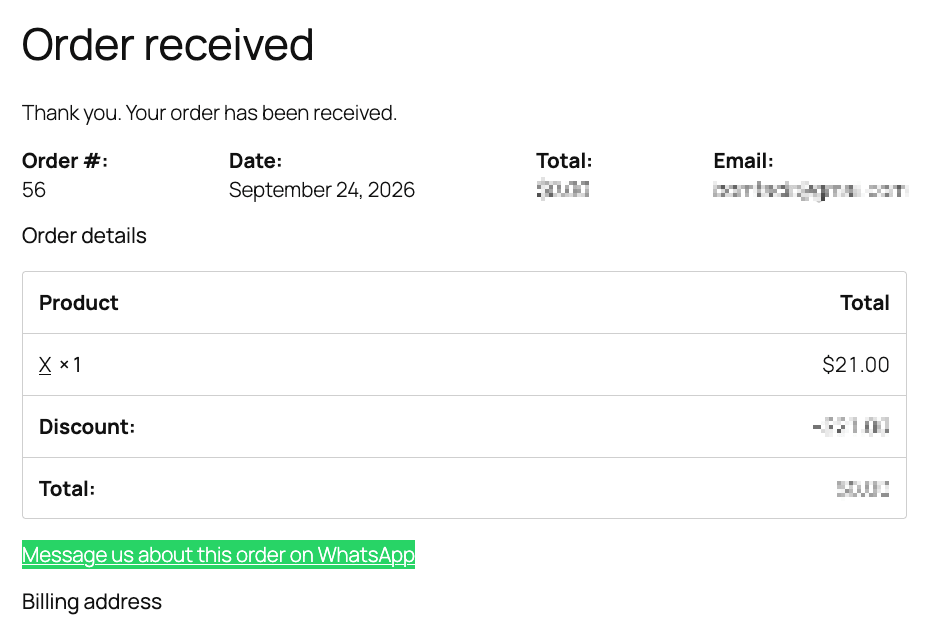
Right after checkout, customers see a Message us about this order on WhatsApp button, pre-filled with their order number. It only appears on the order-received page itself, not when a customer looks at past orders in My Account.
Order emails
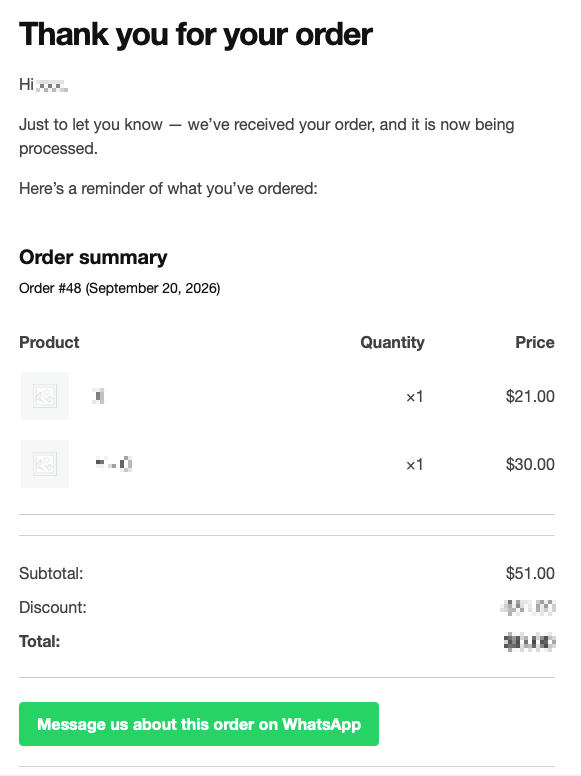
The same button is added below the order table in every WooCommerce email sent to the customer: order received, processing, completed, and so on. It isn’t added to the admin copies of order emails sent to you. In plain-text emails, it appears as the label followed by the link.
10. The WhatsApp Log
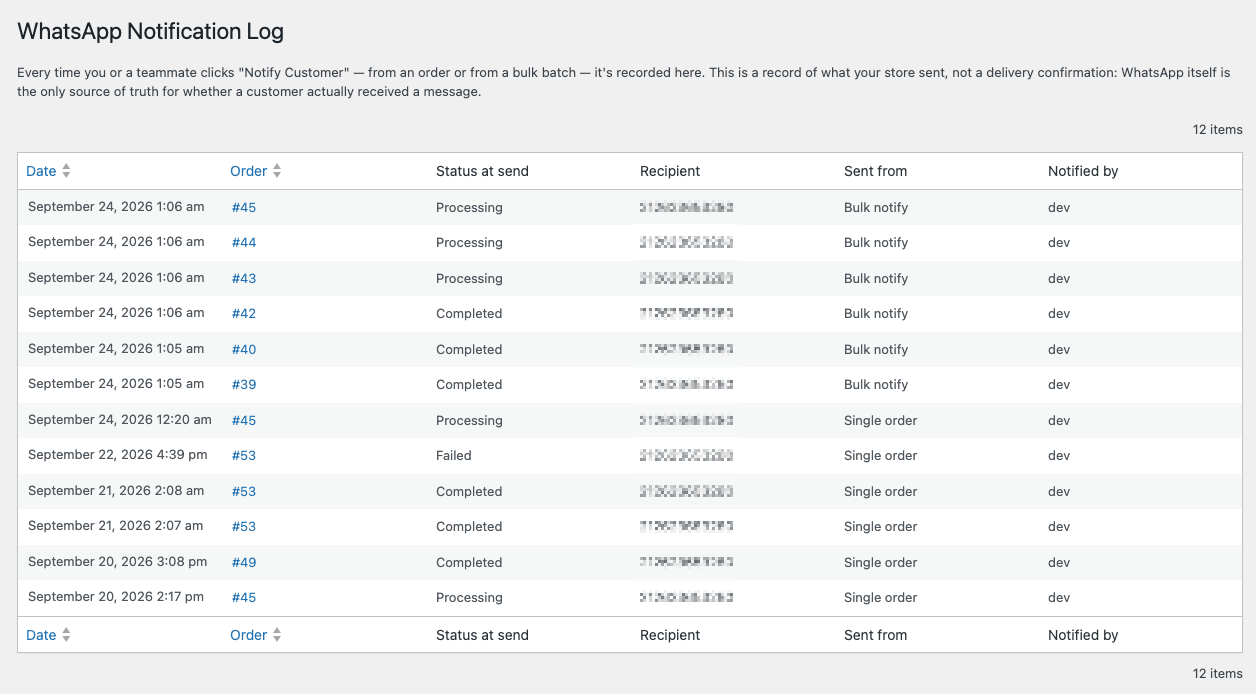
Go to WooCommerce → WhatsApp Log to see every notification sent with Notify Customer, newest first, 20 per page.
Columns:
- Date: when it was logged, in your site’s timezone.
- Order: links to the order. If the order was deleted, it shows “(order no longer exists)”.
- Status at send: the order’s status at that moment, which is also the template that was used.
- Recipient: the customer number the message was addressed to.
- Sent from: Single order or Bulk notify.
- Notified by: which admin user did it.
You can sort by Date or Order.
This log is your own record of what your team prepared and sent. It isn’t proof of delivery. The free plugin can’t see inside WhatsApp, so it can’t know whether a message was sent, delivered or read. Only WhatsApp knows that. Logging also happens at different moments: when you click the button for a single order, and when you click Sent — Next for bulk.
Customer-initiated chats from the product, cart and order buttons aren’t logged. Those conversations start in the customer’s WhatsApp, not in your admin.
11. How customer phone numbers are handled
WhatsApp links need a full international number. Customers usually type their local format instead. The plugin converts the order’s billing phone like this:
- If it starts with
+or00, it’s already international and is used as-is, e.g.+212 612 345 678→212612345678. - Otherwise, it’s treated as a local number. One leading
0is removed and the calling code for the order’s billing country is added in front, e.g.0612345678with billing country Morocco →212612345678. - If the billing country is missing or unknown, the digits are used as typed.
- The result must be 8 to 15 digits. Otherwise the order counts as having “no usable phone number”.
One common problem: a customer who types their country code without a + gets the country code added twice. For example, 212612345678 with billing country Morocco becomes 212212612345678. That’s why the Notify button shows the number before you click. If it looks doubled, edit the order’s billing phone to start with + (e.g. +212612345678), click Update and try again.
12. Privacy and data
- The plugin makes no outside API calls and sends nothing to DispatchWP or any other service. It has no analytics or tracking.
- Messages are built on your own site and opened as ordinary
wa.melinks. - The message text travels inside that link, so it can show up in the browser history of whoever clicks it. That’s why the default customer-facing order message only includes the order number. If you add
{order_total},{items}or other details to your templates, keep in mind they’ll be in the link too. - The WhatsApp Log is stored in your own site’s database. It records the order, status, recipient number, who clicked and when.
13. Deactivating or deleting the plugin
If “Require phone number at checkout” is turned on, turn it off and click Save changes before you deactivate the plugin. While the setting is on, the plugin sets WooCommerce’s own checkout phone field to “Required”, and it only changes that back when you switch the setting off. If you deactivate first, your checkout will keep requiring a phone number.
If that’s already happened, you can change it in WooCommerce yourself:
- Checkout block: edit your Checkout page, select the Checkout block and set the phone number field back to Optional (or Hidden) in the block settings.
- Classic checkout: go to Appearance → Customize → WooCommerce → Checkout and change Phone field.
Deactivating the plugin removes all buttons and actions straight away and keeps your settings and log, so nothing is lost if you reactivate. Deleting the plugin from the Plugins screen also removes its settings and the WhatsApp Log table.
14. Troubleshooting
The WhatsApp button doesn’t appear on my product page, cart or thank-you page
- Check WooCommerce → Settings → WhatsApp → General. Is the WhatsApp number filled in, with its country code, and 8 to 15 digits long? If it’s empty or invalid, every customer-facing button is hidden.
- Check Buttons. Is that button’s Show… box ticked?
- Cart button: the cart must have at least one item.
- Order button: it only shows on the page right after checkout, not in My Account → Orders.
- If you use a caching plugin or host-level caching, clear the cache after changing settings.
A customer’s chat opens with the wrong number, or WhatsApp says the number isn’t on WhatsApp
Customer-facing buttons use your store number. Make sure it’s entered in international format, e.g. 212612345678 and not 0612345678, and that this number actually has WhatsApp installed.
“This order has no usable phone number on file”
The order has no billing phone, or it’s too short or too long to be a real number. Edit the order, add or fix the billing phone and click Update. To prevent this on future orders, turn on Require phone number at checkout under General.
The number on the Notify button looks wrong (for example, the country code appears twice)
The customer probably typed their country code without a +. Edit the billing phone so it starts with + and the country code, then try again. See How customer phone numbers are handled.
The message says something like {product_name} or {tracking_number} instead of a value
- Check the spelling and the curly brackets. Only the placeholders listed for that section work there. For example,
{product_name}only works in the product button message. {tracking_number}is empty unless a shipment-tracking plugin or custom code provides it. If you don’t have one, remove it from your templates.
The wrong template was used
The template is chosen by the order’s current status when you click Notify. Change the order status first, or edit the template for the status it’s in.
“This notification batch has expired or could not be found”
The bulk batch was left for more than 15 minutes without a click. Start a new one from the Orders list with the orders you haven’t done yet.
Nothing happens when I click Open WhatsApp or Notify Customer
- These open a new browser tab. Check whether your browser blocked it.
- On a computer,
wa.memay first show a “Continue to chat” page where you choose WhatsApp Web or the desktop app. WhatsApp Web needs to be logged in with your store’s phone.
The log says a message was sent, but the customer says they never got it
The log records that someone on your team clicked, not that WhatsApp delivered the message. Check the chat in your WhatsApp. If the message is still sitting unsent in the message box, it was never sent. For single-order notify especially, the log entry is created on click, before Send is pressed in WhatsApp.
My checkout still requires a phone number after I deactivated the plugin
See Deactivating or deleting the plugin.
“Dispatchable Order Messaging is not running.”
Your site doesn’t meet a requirement. The notice lists which one, usually WooCommerce being inactive or too old. See Requirements.
15. FAQ
Do I need a WhatsApp Business API account or a Meta developer account?
No. The free plugin works with an ordinary WhatsApp number, personal or WhatsApp Business app, using standard wa.me links.
Does it send messages automatically?
No. Every message, single or bulk, opens in WhatsApp already written, and someone taps Send. Nothing is sent in the background. Automatic sending, through your own Meta WhatsApp Cloud API account, is what Dispatchable Order Messaging Pro adds.
Which number do the Notify Customer messages come from?
From whichever WhatsApp account is logged in where the link opens: your phone, WhatsApp Web or the desktop app. The number in General settings is only used for the buttons customers click to reach you.
Can I write messages in my own language?
Yes. Every label, message and template is plain text you can write in any language. The default wording is in English.
Does it work with HPOS and the Cart/Checkout blocks?
Yes, and with legacy order storage and the classic shortcode cart and checkout as well.
Can I turn off a button I don’t want?
Yes. Each of the three customer-facing buttons has its own on/off switch under Buttons.
Can I see whether a customer read my message?
Not in the free plugin. It can’t see inside WhatsApp. Pro tracks sent, delivered, read and failed status for messages it sends through the Meta Cloud API.
Who can use Notify Customer and see the log?
Any user who can manage WooCommerce, i.e. with the manage_woocommerce capability, such as Administrators and Shop Managers.
16. For developers: filters
dispatchwp_whatsapp_order_tracking_number: supplies the{tracking_number}value. Receives(string $tracking_number, WC_Order $order)and is empty by default.dispatchwp_whatsapp_message_composed: changes a customer-facing message before its link is built. Receives(string $message, string $context, array $args), where$contextisproduct_button,cart_button,thankyou_linkoremail_link.dispatchwp_whatsapp_settings_fields: adds fields to the General, Buttons or Templates section. Receives(array $settings, string $section).
Example: filling {tracking_number} from an order meta key your tracking plugin uses.
add_filter( 'dispatchwp_whatsapp_order_tracking_number', function ( $tracking, $order ) {
	return (string) $order->get_meta( '_your_tracking_meta_key' );
}, 10, 2 );
Still stuck?
Free plugin question? Ask on the WordPress.org support forum or email support@dispatchwp.com. Pro or account question? Reach support from your account. Anything else, get in touch.