
This guide covers Dispatchable Order Verification for WooCommerce, the free plugin, from start to finish: installing it, setting it up, every feature, and how to fix the problems merchants most often run into. It describes version 0.1.0.
What it does. Cash on delivery orders cost nothing to place, so some are never meant to be accepted: prank orders, duplicates, wrong numbers, impulse buys the customer forgets. Every one you ship costs you twice, once to send it and again when it comes back. This plugin helps you confirm those orders before you ship them. Customers confirm with one tap on a link, and your team works through the rest from one screen.
How it works: the customer confirms, you decide. The free plugin never sends a message by itself, never changes an order’s status by itself, and never adds a step to your checkout. Every change happens because someone clicked a button, either the customer on the confirmation page or you in your WordPress admin. It needs no outside account or API key, and everything stays in your own database.
1. Requirements
- WordPress 6.6 or newer
- WooCommerce 8.2 or newer, installed and active
- PHP 8.1 or newer
It works with:
- the classic (shortcode) checkout and the Checkout block;
- the classic and block-based order-received page;
- High-Performance Order Storage (HPOS) and the older posts storage;
- classic email templates and WooCommerce’s block email editor.
You don’t need to change anything about how your store is built.
2. Installing the plugin
- Make sure WooCommerce is installed and active.
- Go to Plugins → Add New Plugin, search for Dispatchable Order Verification, click Install Now, then Activate.
On activation, the plugin:
- creates a page called Confirm your order on your site. This is where customers answer. Leave it published.
- adds a Settings link to its row on the Plugins screen.
- adds a Confirmation queue item under the WooCommerce menu.
On a fresh install, a “Dispatchable Order Verification is active.” notice appears on the Plugins screen with a Set up order verification button. The notice only appears on the Plugins screen and the plugin’s own screens. It goes away once you finish or skip the wizard, or click Dismiss.
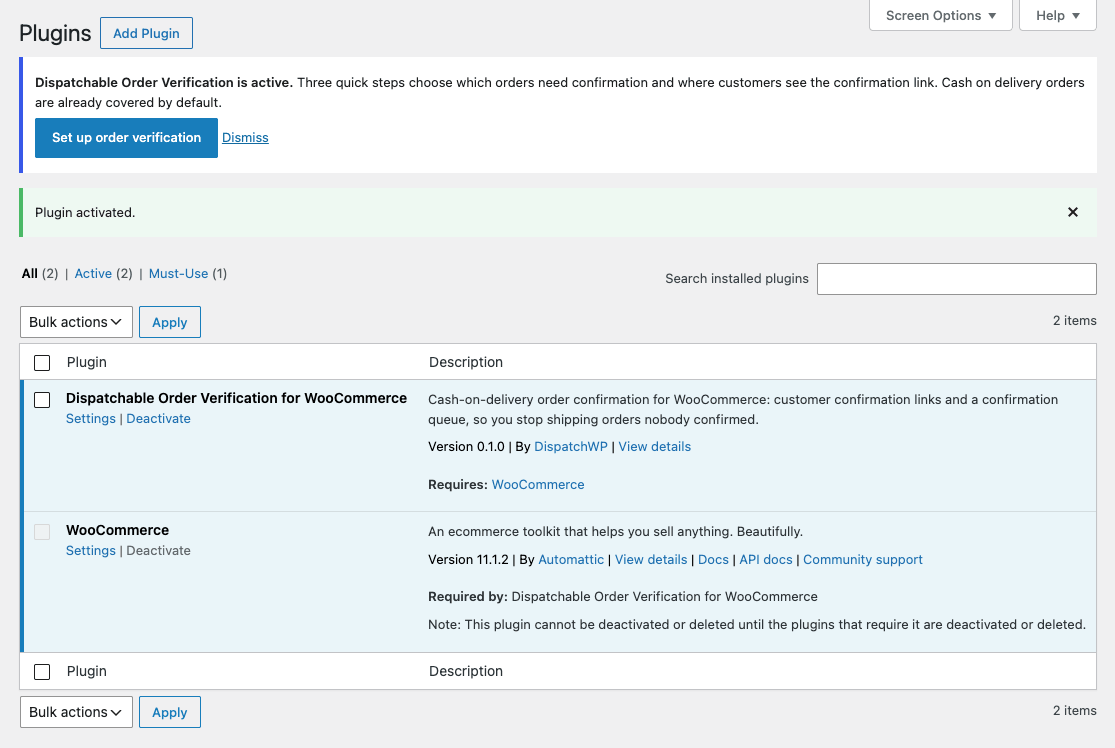
If your site doesn’t meet the requirements, the plugin stays inactive and shows a notice listing exactly what’s missing. It won’t break your site.
3. The setup wizard
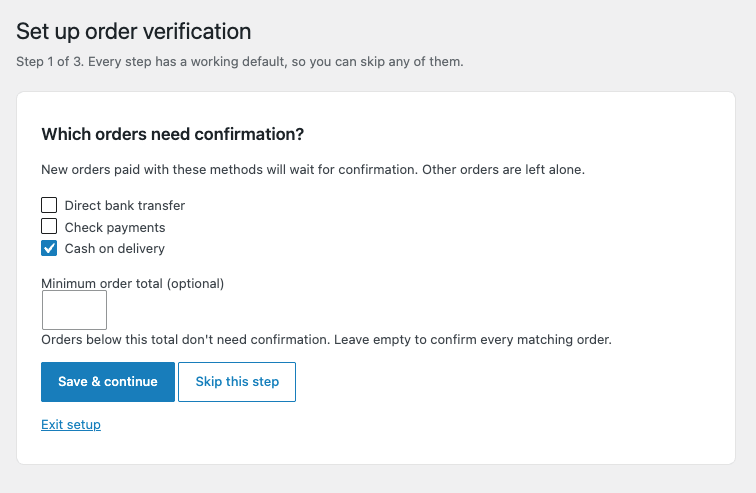
The wizard has three short steps. Each step has a working default, so you can use Skip this step or Exit setup at any point. Cash on delivery orders are covered from the moment you activate, even if you never open the wizard. You can run it again any time from the Run the setup wizard link at the top of the plugin’s settings.
- Which orders need confirmation? Tick the payment methods whose new orders should wait for confirmation. Cash on delivery is ticked by default. You can also set an optional Minimum order total: orders below it don’t need confirmation.
- Where should customers see the confirmation link? In the order emails WooCommerce already sends the customer, and on the order-received (thank-you) page. Both are on by default. The same step asks Should new Cash on delivery orders start On hold? This is off by default. See Starting COD orders On hold before you turn it on.
- What does a failed Cash on delivery delivery cost you? Enter your average cost of one failed delivery (shipping plus return fee). This is optional. It powers the cost-avoided estimate on the Confirmation queue.
Clicking Save & finish takes you to the Confirmation queue with a short “You’re set up” message.
4. How verification works: the five states
Every new order placed through your checkout gets a verification state. This is separate from its WooCommerce status (Processing, On hold…), and the plugin never adds custom order statuses.
- Awaiting confirmation: the order needs confirming and nobody has answered yet.
- Confirmed: the customer confirmed it with the link, or your team marked it confirmed.
- Declined by customer: the customer said they don’t want it, on the link or by phone. The order is not cancelled automatically.
- Unreachable: you couldn’t reach the customer, for example because the number was wrong.
- Not required: the order didn’t need confirming, for example because it was paid by card or was below your minimum total. This is final and never changes.
Which orders are tracked:
- Tracked: new orders placed through your checkout (classic or block) after the plugin was activated. The state is set once, when the order is placed.
- Not tracked (shown as “–”): orders created in wp-admin, orders created by other plugins or apps through the API, and orders placed before you installed the plugin.
- Changing settings only affects orders placed afterwards. It never rewrites existing orders.
Every change is added to the order as an order note, recorded in the order’s history panel, and written to the Activity log. You can always see who changed what, how and when.
People can correct a decision later. For example, an order the customer declined can still be marked confirmed after a phone call. A customer’s own link can only record Confirmed or Declined, and only once.
5. Settings
Go to WooCommerce → Settings → Order verification.
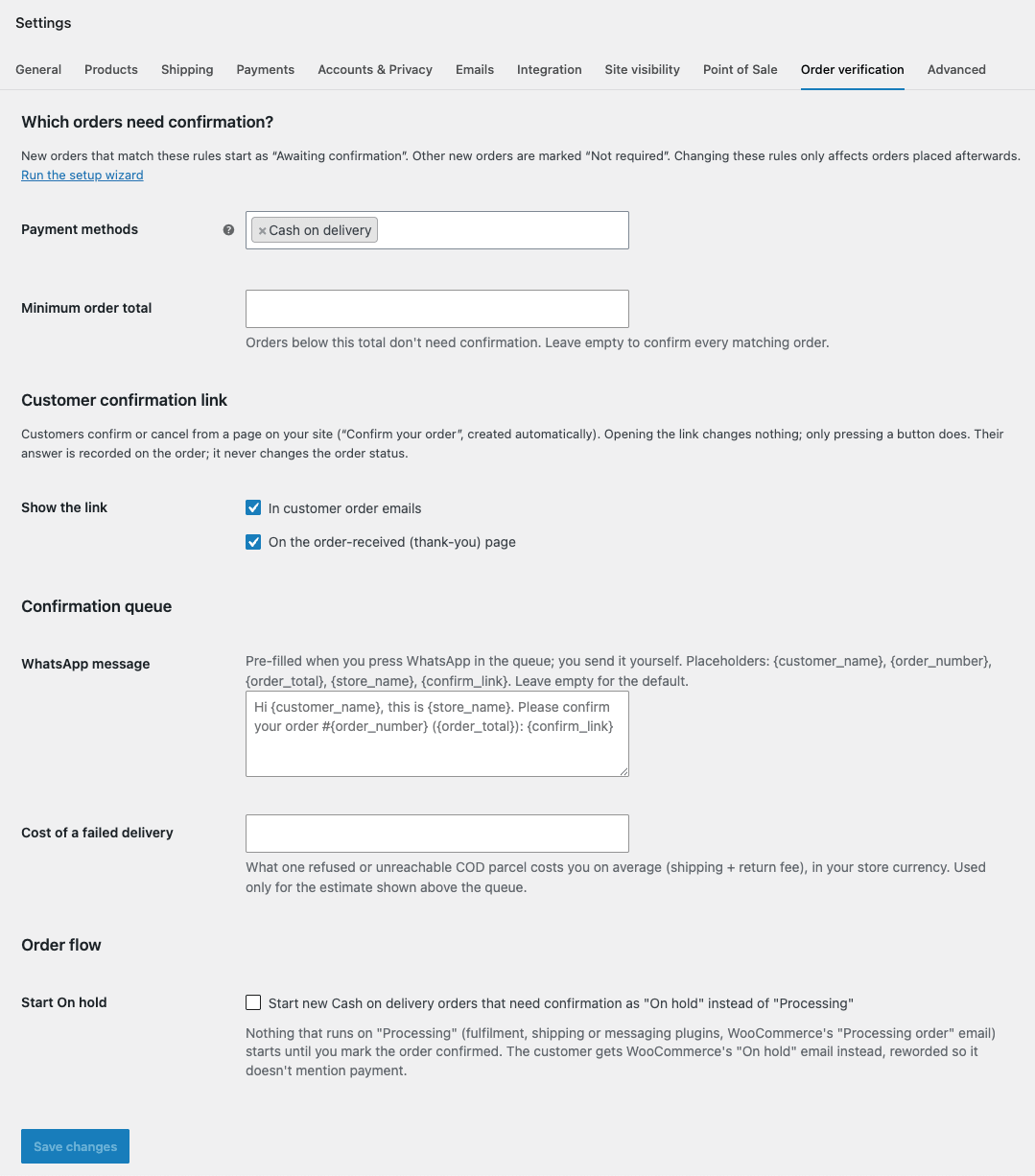
Which orders need confirmation?
- Payment methods: orders paid with these methods need confirmation. The default is Cash on delivery. Leave the field empty to turn confirmation off for new orders.
- Minimum order total: orders below this total don’t need confirmation. Leave it empty to confirm every matching order.
Customer confirmation link
- Show the link → In customer order emails (on by default)
- Show the link → On the order-received (thank-you) page (on by default)
Confirmation queue
- WhatsApp message: the text pre-filled when you press WhatsApp in the queue. You send it yourself. Placeholders:
{customer_name},{order_number},{order_total},{store_name},{confirm_link}. Leave it empty to use the default:
Hi {customer_name}, this is {store_name}. Please confirm your order #{order_number} ({order_total}): {confirm_link} - Cost of a failed delivery: what one refused or unreachable COD parcel costs you on average, in your store currency. It’s only used for the estimate above the queue.
Order flow
- Start On hold: start new Cash on delivery orders that need confirmation as “On hold” instead of “Processing”. Off by default. See Starting COD orders On hold.
Click Save changes.
6. What your customers see: the confirmation link
In their order emails
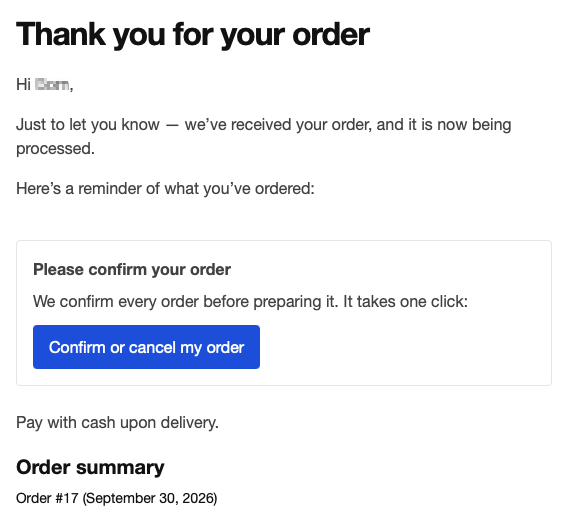
For an order that’s awaiting confirmation, a “Please confirm your order” box is added near the top of every WooCommerce email sent to the customer. It says “We confirm every order before preparing it. It takes one click:” and has a Confirm or cancel my order button. In plain-text emails, the link is shown as text.
- The plugin sends no emails of its own. The box only goes into emails WooCommerce was already sending.
- It never appears in admin emails sent to you.
On the order-received page
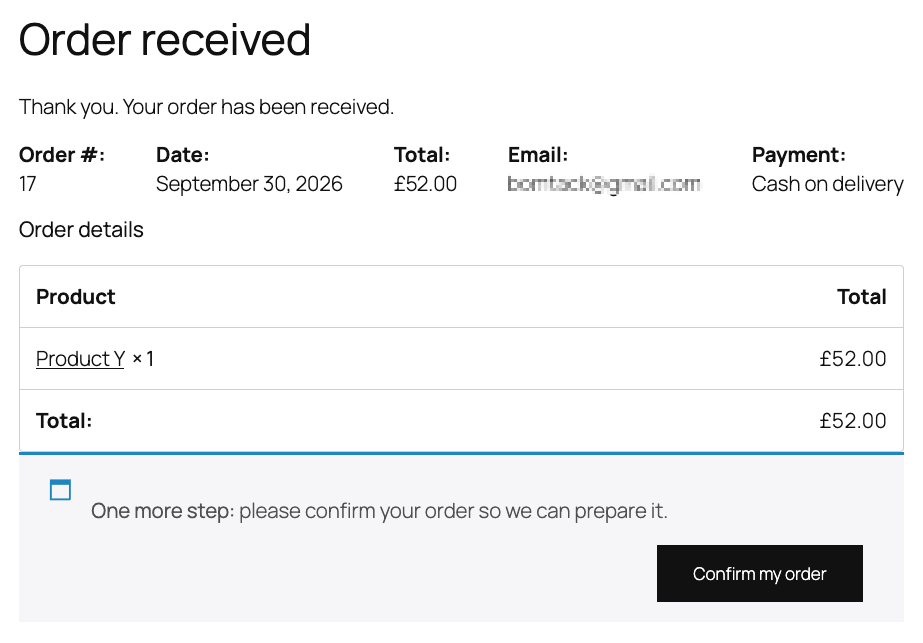
Right after checkout, the customer sees “One more step: please confirm your order so we can prepare it.” with a Confirm my order button. It appears once, on the order-received page only, not when a customer looks at past orders in My Account.
The Confirm your order page
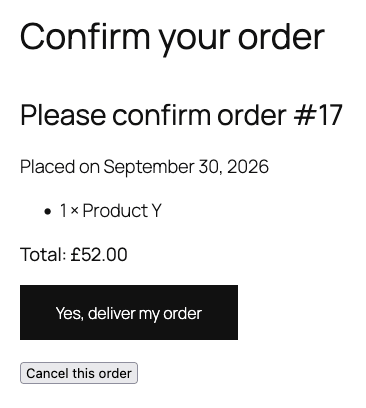
The link opens the Confirm your order page on your own site, styled by your theme. It shows:
- the order number, date, items and total, with no address, phone or email;
- two buttons: Yes, deliver my order and Cancel this order.
What happens when the customer answers:
- Yes, deliver my order: the order becomes Confirmed. The customer sees “Thank you! Order #… is confirmed. We’ll prepare it for delivery.”
- Cancel this order: the order becomes Declined by customer. The customer sees “We’ve noted that you don’t want order #…”. The order is not cancelled. It moves to the queue’s “Declined or unreachable” view for you to decide.
- Either way, the order’s status doesn’t change and no message is sent to anyone. Only you move or cancel orders.
Safety details worth knowing
- Opening the link changes nothing. Only pressing a button does. Many email security scanners open every link in an email automatically. Because of this rule, they can’t confirm an order nobody looked at.
- Each link belongs to one order and expires after 7 days. Every email, page or WhatsApp message that shows a link creates a fresh one.
- Links are stored only as a scrambled (hashed) code, so the real link can’t be read from your database.
- One answer only. Once the customer has answered, or you’ve resolved the order yourself, the page shows the outcome and asks them to contact the store for changes. You can still correct the order from wp-admin.
- Once an order is no longer awaiting confirmation, later emails no longer carry the box.
- After 10 invalid link attempts within 15 minutes, a visitor is blocked for a while.
7. The Confirmation queue
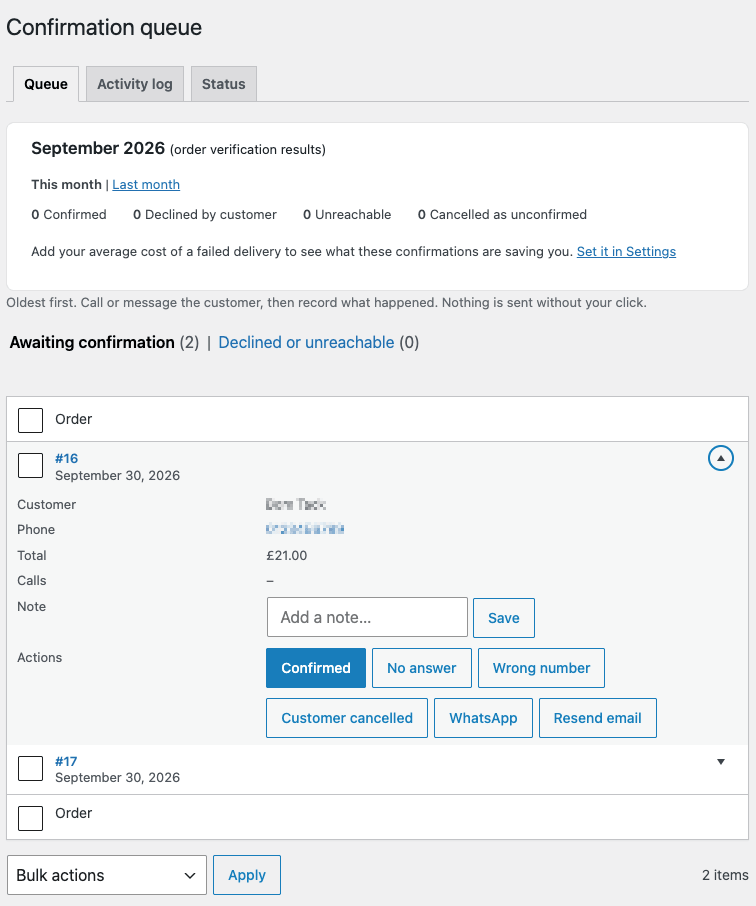
Go to WooCommerce → Confirmation queue. The menu shows a count bubble with the number of orders awaiting confirmation. This is your team’s daily work screen.
The two views
- Awaiting confirmation: orders nobody has answered yet.
- Declined or unreachable: orders the customer declined, or you couldn’t reach, that still need your decision.
Both views show orders with status Pending payment, On hold or Processing, oldest first. You can search by order number.
The columns
- Order: number and date, linked to the order.
- Customer
- Phone: tap to call on a phone, or click on a computer set up for calls.
- Total
- Calls: how many unanswered calls you’ve recorded.
- Note: the latest note, plus a field to add one. Notes are saved as private WooCommerce order notes. Customers don’t see them.
- Actions: the buttons below.
Buttons for an order awaiting confirmation
Call the customer, then record what happened:
- Confirmed: marks the order confirmed. An order that’s Pending payment or On hold also moves to Processing. An order already in Processing stays there.
- No answer: adds one to the unanswered-call counter and adds a private note. The order stays in the queue.
- Wrong number: marks the order Unreachable. It’s not cancelled.
- Customer cancelled: marks the order Declined by customer. It’s not cancelled.
After Wrong number or Customer cancelled, the result message offers a Cancel as unconfirmed button with the matching reason already chosen. The order also moves to the “Declined or unreachable” view, so you can decide later.
The other buttons:
- WhatsApp: opens WhatsApp in a new tab with your WhatsApp message pre-filled, including a fresh confirmation link. You press Send yourself. This uses WhatsApp’s standard click-to-chat link. It doesn’t need the WhatsApp Business API or any WhatsApp plugin. The button only shows when the order has a usable phone number.
- Resend email: sends the customer WooCommerce’s own Order details email, which includes the confirmation box. One click sends one email. It only shows when the order has an email address.
Buttons for a declined or unreachable order
- Mark confirmed: for example, after you finally reached the customer.
- Cancel as unconfirmed: opens the reason screen. See below.
- WhatsApp, when the order has a usable phone number.
8. Working through orders one at a time
For a morning batch:
- Tick the orders in the queue.
- From Bulk actions, choose Work through selected one at a time and click Apply.
- You’ll see one order per screen, e.g. Order 1 of 5, with the unanswered-call count and the same buttons as in the queue.
- Record the outcome. You stay on the same card until you move on with Next order, Previous or Finish.
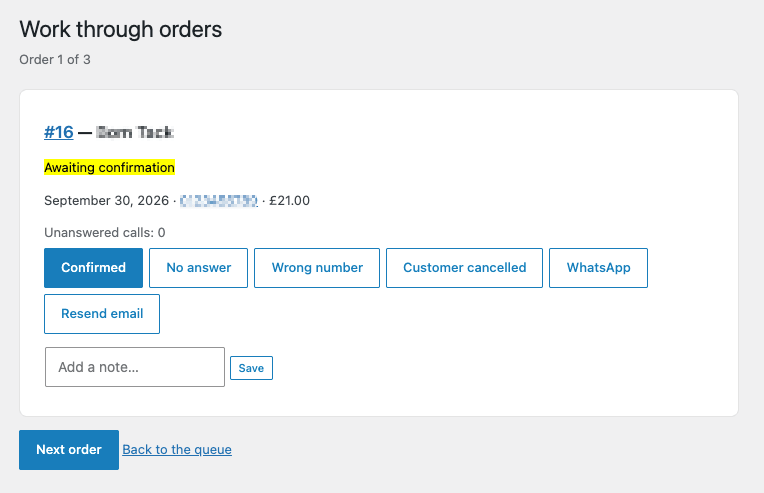
At the end you’ll see “All done.” with a Back to the queue button. Moving between orders never sends anything or changes any order. Only the buttons you press do.
9. On the order screen and the Orders list
The Order verification panel
Every order’s edit screen has an Order verification panel in the sidebar. It shows:
- the current state (e.g. Awaiting confirmation), with “Since …”;
- the buttons Mark confirmed & move to Processing (just Mark confirmed if the order is already Processing) and Cancel as unconfirmed;
- a History of the last 10 events, such as “Awaiting confirmation (at checkout)”, “Called, no answer (attempt 2)” or “Confirmed by the customer”.
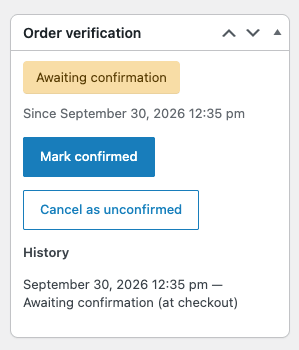
The buttons appear while the order is Awaiting, Declined or Unreachable and its status is Pending payment, On hold or Processing. An order that’s already Confirmed, or that has moved on to Completed or Cancelled, shows the history only. Use WooCommerce’s normal tools for those.
Cancel as unconfirmed
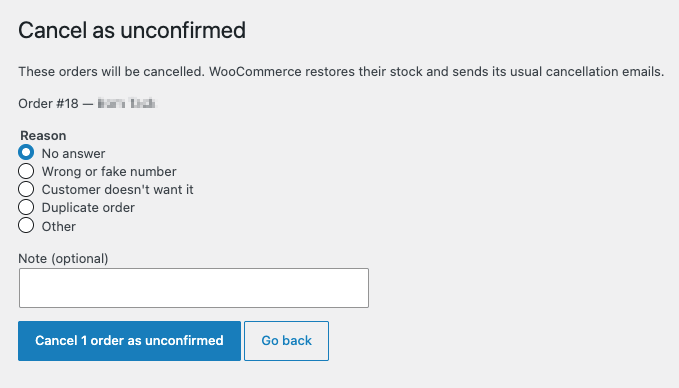
This opens a short screen where you choose a Reason:
- No answer
- Wrong or fake number
- Customer doesn’t want it
- Duplicate order
- Other
You can add a Note (optional) of up to 200 characters. Then confirm.
- The order is cancelled through WooCommerce’s normal process: stock is restored, and WooCommerce sends its usual cancellation emails as you’ve configured them.
- The reason is recorded in the order notes, the history and the Activity log.
- An order that was still awaiting confirmation becomes Declined by customer if you chose “Customer doesn’t want it”, and Unreachable for any other reason.
The Orders list
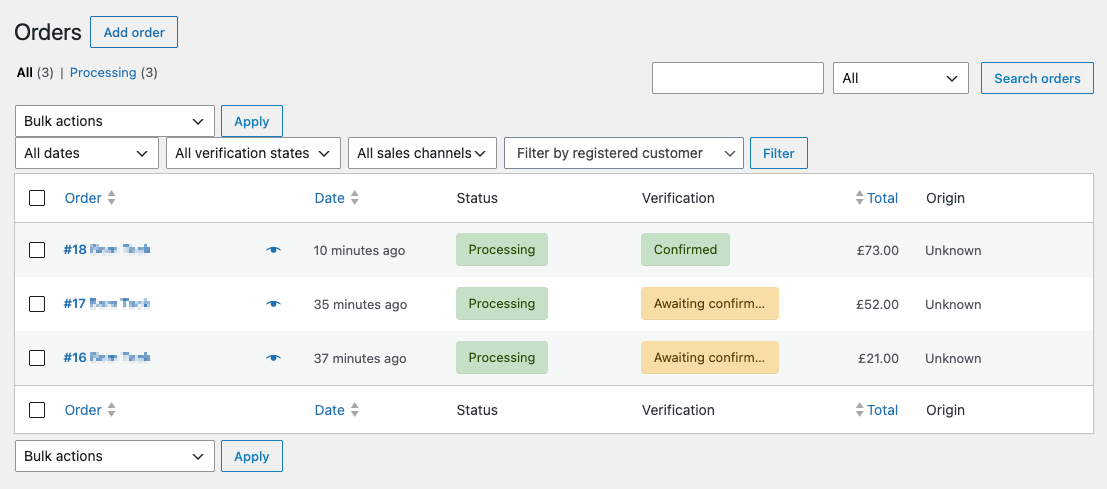
- A Verification column next to Status shows each order’s state as a coloured badge: Awaiting (orange), Confirmed (green), Declined (red), Unreachable (grey), Not required (plain text), or “–” for untracked orders.
- A filter above the list (All verification states) shows one state only.
- Two bulk actions: Mark confirmed (order verification) and Cancel as unconfirmed (order verification). Bulk cancel opens the same reason screen for all selected orders. Orders that can’t take the action are skipped, and the result message lists them.
10. Starting COD orders On hold
By default, WooCommerce puts new Cash on delivery orders straight into Processing. Anything that runs on Processing, such as fulfilment plugins, shipping-label tools, automatic WhatsApp or SMS messages, or WooCommerce’s own “Processing order” email, starts right away, before anyone has confirmed the order.
If you turn on Start On hold (WooCommerce → Settings → Order verification → Order flow):
- new Cash on delivery orders that need confirmation start On hold instead;
- when you click Confirmed or Mark confirmed & move to Processing, the order moves to Processing. Everything that runs on Processing starts at that moment, after a person confirmed it.
- the customer gets WooCommerce’s “On hold” email instead of the “Processing” one. Normally that email talks about waiting for payment, which would confuse a COD customer. For these orders it’s reworded to: “We’ve received your order. We’ll confirm it with you before we prepare it.”
Only COD orders that are awaiting confirmation are held. Orders below your minimum total, and other payment methods, follow WooCommerce’s normal flow. With the setting off (the default), your order flow is exactly as it was before you installed the plugin.
Note: a customer confirming through the link does not move the order to Processing. It only records Confirmed. Someone on your team still clicks Mark confirmed & move to Processing, from the order screen, the queue or the Orders list bulk action.
11. Monthly results and the cost-avoided estimate
The top of the Confirmation queue shows this month’s results, with a This month / Last month switch. Months follow your site’s timezone. It counts orders:
- Confirmed
- Declined by customer
- Unreachable
- Cancelled as unconfirmed
Once you’ve entered your Cost of a failed delivery in settings (or in the wizard), it also shows “Estimated failed-delivery cost avoided: X” in your store currency, with its formula written out underneath:
Orders declined by the customer or cancelled as unconfirmed (and not confirmed afterwards) × your cost per failed delivery.
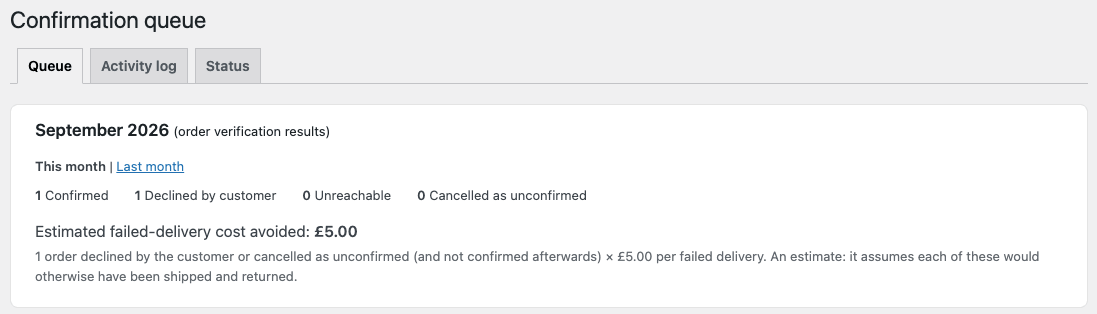
- It’s always labelled as an estimate. It assumes each of those orders would otherwise have been shipped and returned.
- An order that was declined and later confirmed (and so shipped after all) isn’t counted.
- An order that’s only Unreachable isn’t counted either: until you cancel it, nothing has been avoided yet.
- Until you enter a cost, the panel shows the counts plus a link to add it.
12. The Activity log
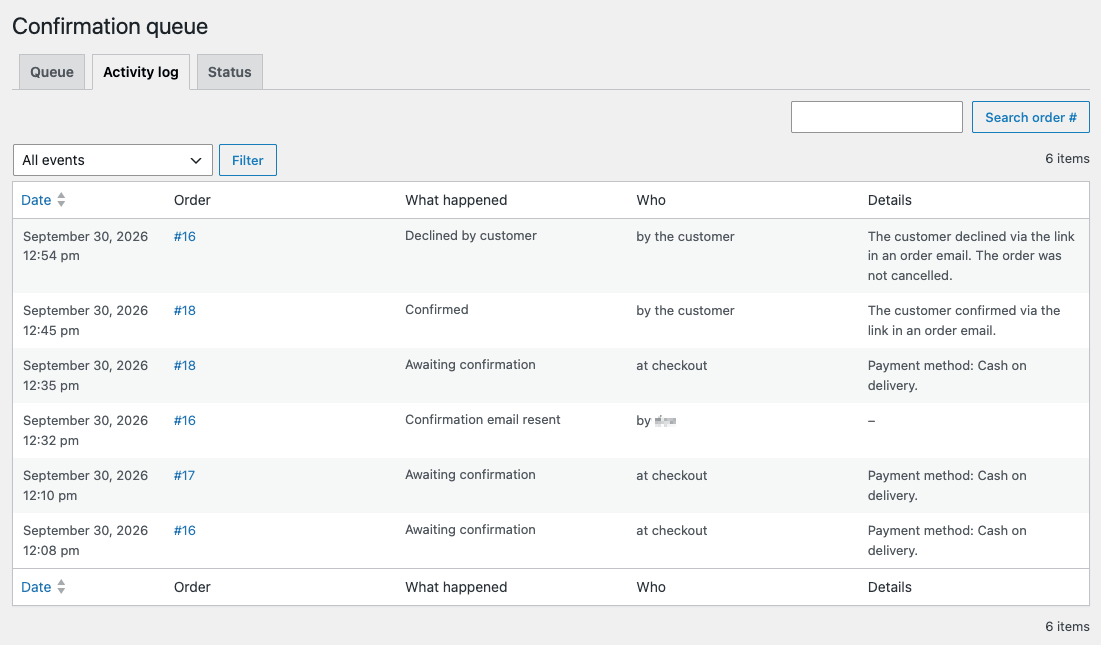
Open the Activity log tab on the Confirmation queue page. It’s a read-only record of every verification change, call, WhatsApp opening, email resend and cancellation, newest first, 20 per page.
Columns:
- Date
- Order
- What happened
- Who: at checkout, by the customer, or by a named team member.
- Details: e.g. a cancellation note.
Search by order number, and filter by type:
- Verification changes
- Cancelled as unconfirmed
- Calls with no answer
- WhatsApp opened
- Emails resent
13. The Status tab
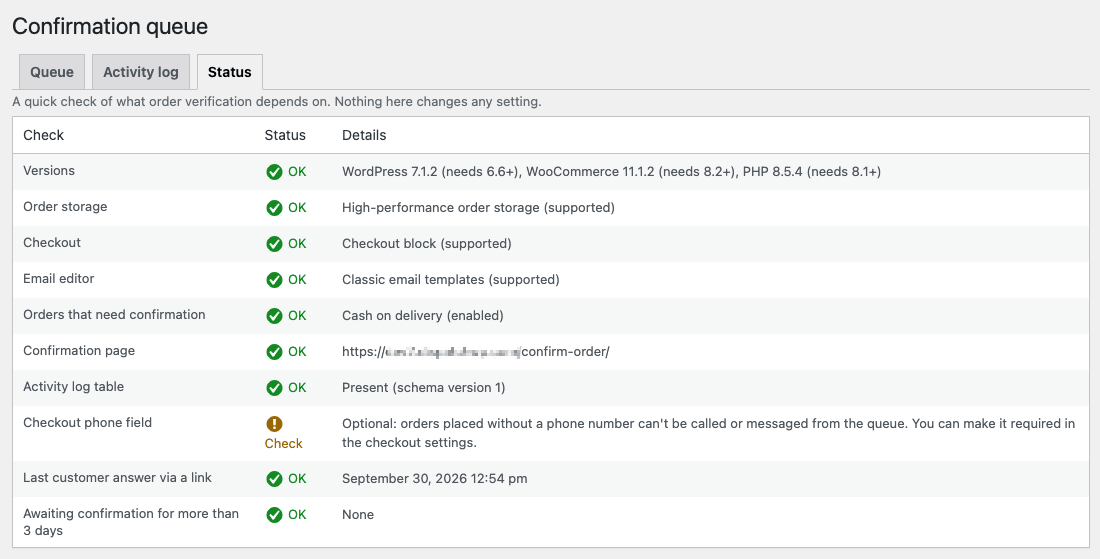
The Status tab on the Confirmation queue page checks everything order verification depends on. It doesn’t change any setting. Each row is marked OK, Check, Problem or Info:
- WordPress, WooCommerce and PHP versions;
- order storage (HPOS or posts);
- checkout type (block or shortcode);
- email editor (block or classic);
- which orders need confirmation, and whether those payment methods are enabled;
- the Confirm your order page and its shortcode;
- the activity log table;
- the checkout phone field (Required, Optional or Hidden);
- the last customer answer received through a link;
- orders awaiting confirmation for more than 3 days.
The same checks appear in WooCommerce → Status → System status under Order verification. They’re included when you copy your system report for support.
14. Privacy and your data
- No outside service, account or API key. Nothing leaves your site.
- What’s stored:
- on each tracked order: its verification state, unanswered-call count, latest queue note and scrambled link codes;
- in one table of its own: the history of what happened, who did it and when. The table holds no phone numbers, emails or IP addresses.
- WordPress’s privacy tools (Tools → Export Personal Data / Erase Personal Data) include this plugin’s data, looked up by the customer’s email.
- An export includes each tracked order’s verification state, call count, latest note and full history.
- An erase removes free-text notes and link codes. It keeps the verification states and event history, which are your store’s business records behind the monthly results, and reports them as kept.
- The plugin suggests wording for your privacy policy under Settings → Privacy → Policy Guide.
15. Deactivating or deleting the plugin
- Deactivating removes the confirmation box from emails and the thank-you page, the queue and the order panel straight away. Your data is kept for if you reactivate.
- Customer links already sent will open a page with a plain shortcode on it. Move the Confirm your order page to Draft if you deactivate for good.
- Orders held On hold by the plugin stay On hold. Move them on by hand.
- Deleting the plugin from the Plugins screen removes all of its data:
- its settings;
- its activity log table;
- the Confirm your order page;
- its data on every order.
Your orders themselves, and WooCommerce’s own order notes, are left untouched.
16. Troubleshooting
Start with the Status tab on the Confirmation queue page. Most setup problems show up there.
New orders show “Not required” or “–” instead of “Awaiting confirmation”
- “–” (not tracked): the order was created in wp-admin, by another plugin or app, or before you activated the plugin. Only orders placed through your checkout are tracked.
- “Not required”:
- check Payment methods in settings. Is the order’s payment method selected?
- check Minimum order total. Is the order below it?
- a Cash on delivery method added by another plugin can have its own ID. Pick it from the list rather than relying on the default “Cash on delivery”.
- Remember that settings changes only apply to orders placed afterwards.
The confirmation box isn’t in the customer’s email
- The box only goes into emails for orders that are Awaiting confirmation, with status Pending payment, On hold or Processing. It’s never added to admin emails.
- Check that Show the link → In customer order emails is ticked.
- Check the Confirmation page row on the Status tab. While the page is missing, no links are created.
- If emails don’t arrive at all, that’s an email delivery issue on your site, not this plugin. An SMTP plugin usually fixes it.
The customer says the link doesn’t work
- Links expire after 7 days. Use Resend email or WhatsApp in the queue to send a fresh one.
- If the customer already answered, or you already resolved the order, the page shows the outcome instead of the buttons. That’s intended.
- Too many invalid attempts from one connection are blocked for a short while.
- A caching or security plugin can break the page. The plugin tells caches not to store the Confirm your order page, but if your cache ignores that, exclude the page (slug
confirm-order) from caching.
I deleted or edited the Confirm your order page
- If it’s missing or unpublished, it’s re-created automatically the next time you load any admin page.
- If it still exists but the
[dispatchwp_verify_confirmation]shortcode was removed, customers can’t answer. Add the shortcode back, or move the page to the Trash so it’s re-created.
You can change the page’s title and add your own text around the shortcode.
The WhatsApp button is missing, or opens the wrong number
- The button only shows when the order has a phone number of at least 8 digits.
- How the number is converted to an international one:
- numbers starting with
+or00are used as they are; - numbers already starting with the country code are kept;
- otherwise a leading
0is dropped and the billing country’s calling code is added.
If the result is wrong, fix the order’s billing phone (ideally
+and country code) and try again. - numbers starting with
- If your checkout’s phone field is optional or hidden, some orders have no number. The Status tab tells you which it is.
The customer confirmed, but the order is still On hold
That’s intended. A customer’s answer only records Confirmed. It never moves or cancels the order. Click Mark confirmed & move to Processing on the order, or use the Mark confirmed (order verification) bulk action on the Orders list.
The customer cancelled, but the order wasn’t cancelled
Also intended: you stay in control. Find it in the queue’s Declined or unreachable view and click Cancel as unconfirmed. You might call first, in case they tapped the wrong button.
The Mark confirmed / Cancel buttons don’t appear on an order
They only appear while the order is Awaiting, Declined or Unreachable and Pending payment, On hold or Processing. Confirmed, Not required and untracked orders, and orders already Completed or Cancelled, don’t get them.
The count in the menu is out of date
The number next to Confirmation queue is refreshed at least every 5 minutes, and right away whenever an order’s verification state changes. The queue itself is always current.
The estimate doesn’t show
Enter Cost of a failed delivery (a number above 0) in settings. Until then, the panel shows counts only.
17. FAQ
Does it send messages or cancel orders by itself?
No. The link goes into emails WooCommerce already sends, WhatsApp messages open for you to send, and orders are only confirmed, moved or cancelled when someone clicks a button.
Does it change my checkout?
No. Customers check out exactly as before. Confirmation happens after the order is placed.
Do I need the WhatsApp Business API or a WhatsApp plugin?
No. The WhatsApp button uses WhatsApp’s standard click-to-chat link, and you press Send yourself from your own WhatsApp.
Can I confirm other payment methods, not just Cash on delivery?
Yes. Choose any installed payment methods under Payment methods in settings.
Will it stop my fulfilment or shipping plugins?
Only if you turn on Start On hold. Then those orders stay On hold until you confirm them. With it off (the default), nothing changes.
Can I confirm orders I created in wp-admin?
No. Only orders placed through your checkout are tracked. Orders you create yourself don’t need confirming.
Can several team members work the queue at once?
Yes. Everyone who can manage WooCommerce (Administrators and Shop Managers) can use the queue, and the log records who did what. There’s no assignment of orders to specific people.
Can it send the confirmation requests and reminders for me?
Not the free plugin, deliberately. Dispatchable Order Verification Pro adds automatic confirmation requests, reminders and automatic outcomes.
Still stuck?
Free plugin question? Ask on the WordPress.org support forum or email support@dispatchwp.com. Include the checks from the Status tab. Pro or account question? Reach support from your account. Anything else, get in touch.