
This guide covers Dispatchable Order Tracking for WooCommerce Pro from start to finish: installing and licensing it, the Pro setup wizard, every Pro setting and screen, and how to fix the problems merchants actually run into. It describes version 0.1.0.
What Pro changes. With the free plugin, customers look their order up and you record each delivery step with a click. Telling the customer is up to you: you tap WhatsApp, SMS or Copy and press Send yourself. Pro tells the customer for you, and takes the typing out of recording steps:
- it sends an automatic email when a delivery step is recorded, and a WhatsApp message too if you use Dispatchable Order Messaging Pro;
- it imports your courier’s spreadsheet and records the steps for every matching order at once;
- it gives other systems (Zapier, Make, a warehouse tool) an address to send delivery updates to;
- it shows customers a delivery estimate (“Expected delivery: Thu 8 – Sat 10 Oct”);
- it reports what was sent, how deliveries went, and whether updates brought customers to their tracking page.
Like the free plugin, Pro never changes an order status, and order status changes never send these updates.
Pro builds on the free plugin and needs it installed and active. Everything in the free plugin’s guide still applies, including the tracking page, the lookup form, the delivery-step buttons and the share buttons. This guide covers what Pro adds.
1. Requirements
- WordPress 6.6+, WooCommerce 8.2+, PHP 8.1+.
- The free Dispatchable Order Tracking for WooCommerce plugin, installed and active. Version 0.2.0 or newer is needed to show delivery estimates on the tracking page and in My Account; everything else works from 0.1.0.
- Working email on your site. Delivery-update emails are sent with your site’s normal email. If your store’s order emails already arrive reliably, you’re fine. If not, an SMTP plugin usually fixes it.
- WordPress’s background tasks running (WP-Cron / Action Scheduler). Updates are sent in the background, two minutes after a step is recorded, and imports are applied in the background. This works on almost every host. The health checks warn you if it doesn’t.
- Optional, for WhatsApp updates: Dispatchable Order Messaging for WooCommerce Pro 0.3.0 or newer, connected to your Meta WhatsApp Cloud API account. See WhatsApp delivery updates. It’s a separate purchase; email updates and every other Pro feature work without it.
For email updates, imports, the update address and estimates, no outside account, courier API or DispatchWP service is needed. Pro works with HPOS and posts order storage.
2. Installing Pro and activating your license
- Make sure WooCommerce and the free Dispatchable Order Tracking plugin are both active.
- Download the Pro zip from your purchase email or your DispatchWP account.
- Go to Plugins → Add New Plugin → Upload Plugin, choose the zip, click Install Now, then Activate.
- Enter your license key on the activation screen. If you closed it, go to WooCommerce → Delivery reports, or click Activate license on any Pro screen.
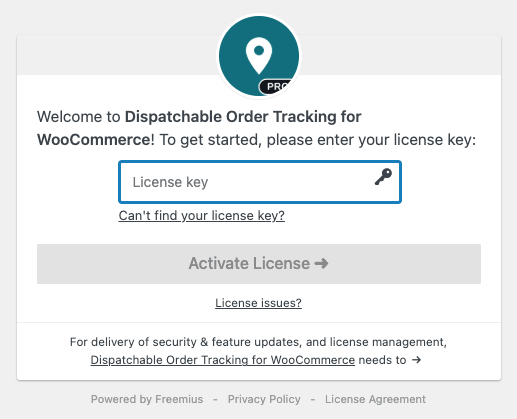
Once Pro is active, its row on the Plugins screen has Settings and Account links. The free plugin stays active; Pro never deactivates it.
If the free plugin is missing, inactive or out of date, Pro doesn’t run. It shows a notice on the Plugins screen explaining which, and starts again as soon as the free plugin is active.
3. The Pro setup wizard
On a new install, a “Dispatchable Order Tracking Pro is active.” notice offers Set up Pro. It waits until the free plugin’s own setup is finished or skipped, so you never see two wizards at once. It only appears on the Plugins screen and the Order tracking screens.
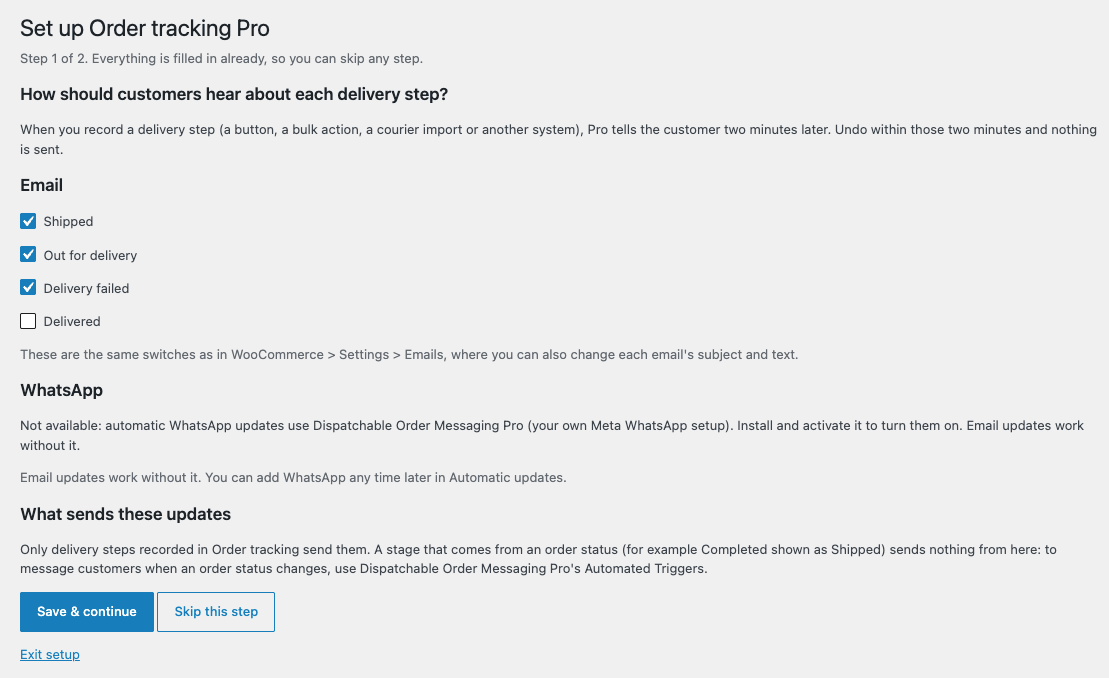
The wizard has two steps. Everything is filled in already, so you can Skip this step or Exit setup at any point.
- How should customers hear about each delivery step?
- Email, on or off for each step. These are the same switches as in WooCommerce → Settings → Emails.
- WhatsApp, a template for each step, when Dispatchable Order Messaging Pro is connected. If you have no approved template yet, there’s a Create the delivery-update templates for me link (see WhatsApp delivery updates). Without Messaging Pro, the wizard says why WhatsApp isn’t available. Email updates work without it.
- What sends these updates: a short reminder that only delivery steps send them, not order status changes.
- When will it arrive? Your Delivery days and one rule for all orders: “All orders arrive in 1 to 3 working days after Shipped”, or tick Don’t show delivery estimates. Rules per zone or shipping method, and holidays, are in the settings (see Delivery estimates).
After Save & finish, you land on Pro’s Automatic updates settings with “Order tracking Pro is set up.” and links to import a courier file, delivery estimates per zone and the delivery reports. You can run the wizard again any time with the Run the Pro setup wizard link in the status panel.
4. Where Pro’s settings and screens live
- WooCommerce → Settings → Order tracking → Automatic updates: the status panel, the WhatsApp choices, the email fallback and the health checks.
- WooCommerce → Settings → Order tracking → Delivery estimates: delivery days, holidays and the estimate rules.
- WooCommerce → Settings → Emails: the four delivery-update emails (subject, heading, text, on/off).
- WooCommerce → Delivery import: the courier spreadsheet import, and the address for other systems with its recent calls.
- WooCommerce → Delivery reports: 12 months of figures, the CSV download, and your license.
The free plugin’s own settings (what each status shows, couriers, stage names) stay under WooCommerce → Settings → Order tracking → General.
5. How automatic updates work
A delivery step sends an update. An order status change doesn’t.
- An update is sent when one of these steps is recorded: Shipped, Out for delivery, Delivery failed or Delivered. It doesn’t matter how the step was recorded: a button on the order screen, a bulk action on the Orders list, a courier import, or another system.
- Returned sends nothing.
- The update goes out two minutes later. If you click Undo last step within those two minutes, or record a newer step, nothing is sent for it. A mis-click never reaches the customer.
- When an update is sent, a private order note says so (for example “by WhatsApp”, or “by email instead of WhatsApp”).
- Recording the same step again (for example a second Out for delivery after a failed attempt) sends again: it’s a new attempt the customer should know about.
What never sends an update:
- order status changes, including a status your map shows as Shipped or Delivered (for example Completed shown as Shipped);
- a fulfillment added in WooCommerce’s own Fulfillments box. WooCommerce emails the customer about that itself.
To message customers when an order status changes, use the Automated Triggers in Dispatchable Order Messaging Pro. Keeping the two apart means a customer never gets two messages for one event. One thing to avoid: if you both record Shipped in Order tracking and change the order to a status Messaging Pro sends a message for, the customer gets both. Pick one for each moment.
6. Delivery-update emails
Pro adds four WooCommerce emails. You’ll find them in WooCommerce → Settings → Emails:
- Delivery update: shipped, subject “Your {site_title} order #{order_number} has shipped”. On by default. Off by default when WooCommerce Fulfillments is on, since WooCommerce already emails a fulfillment.
- Delivery update: out for delivery, “… is out for delivery today”. On by default.
- Delivery update: delivery attempt failed, “We couldn’t deliver your {site_title} order #{order_number}”. On by default.
- Delivery update: delivered, “… has been delivered”. Off by default: the customer was there.
Each one has WooCommerce’s usual settings: on/off, subject, email heading, additional content and email type. Each email contains:
- a greeting and one sentence for the step, for example “Your order #1042 is out for delivery today. Please keep your phone nearby.”;
- the stage name and your message for it, from the free plugin’s settings;
- the note you wrote for the customer with this step, if any;
- the courier and tracking number, linked to the courier’s site, for Shipped;
- the delivery estimate, in the Shipped and Out for delivery emails (see Delivery estimates);
- a Track your order button to the customer’s private tracking page.
The private Delivery failed reason is never shown. There’s no order table: these are short updates, not order receipts.
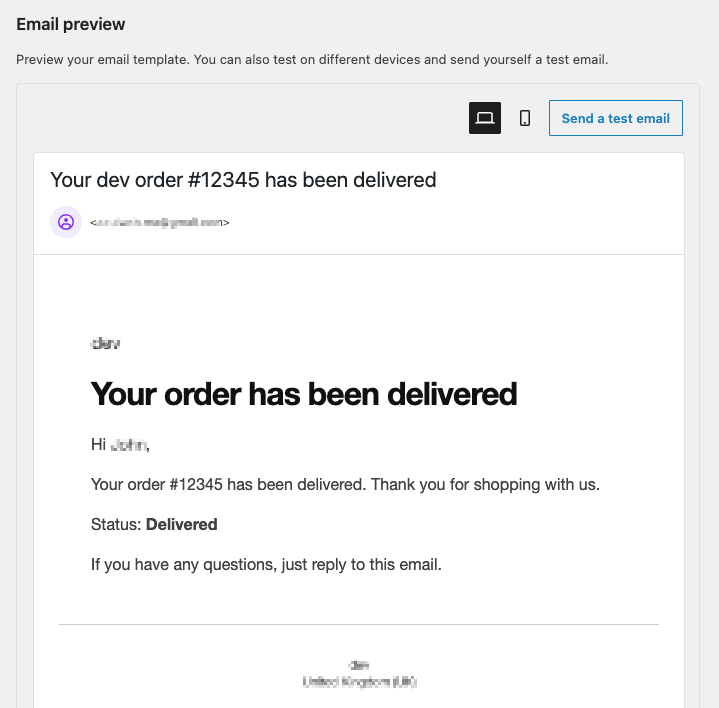
Emails are sent to the order’s billing email. An order with no email address is skipped quietly. The status panel’s table shows each email’s state with an Edit email link.
Changing the design: the emails use your WooCommerce email styles. To change the layout, copy templates/emails/delivery-update.php (and plain/delivery-update.php) from the Pro plugin into yourtheme/dispatchable-order-tracking-pro/emails/. You can also use {estimate} in an email’s subject, heading or additional content.
7. WhatsApp delivery updates
WhatsApp updates go through Dispatchable Order Messaging Pro and your own Meta WhatsApp setup: the same number and Meta account you already use for order notifications. Order Tracking Pro has no Meta settings of its own. Set up Messaging Pro first with its setup guide.
Go to WooCommerce → Settings → Order tracking → Automatic updates. The WhatsApp group says whether WhatsApp is ready:
- “Connected through Dispatchable Order Messaging Pro.”: ready.
- “… active but not ready”: finish its Meta Cloud API settings and run its Test Connection.
- “… active but too old”: update Messaging Pro to 0.3.0 or newer.
- “Not available”: Messaging Pro isn’t installed or active. Email updates still work.
Creating the templates
WhatsApp only lets a business start a conversation with a template Meta has approved. Click Create the delivery-update templates, or see which of your templates can be used, choose a Language (English, French, Arabic or Spanish) and click Create templates. Pro submits these Utility templates to Meta for your number:
dwpt_shipped: “Hi {{1}}, good news: your order #{{2}} has left our store. Follow it here: {{3}} Thank you for shopping with us.”dwpt_shipped_estimate: the same, plus “Expected delivery: {{4}}.”dwpt_out_for_delivery: “Hi {{1}}, your order #{{2}} is out for delivery today. Please keep your phone nearby. Follow it here: {{3}} Thank you.”dwpt_delivery_failed: “Hi {{1}}, we tried to deliver your order #{{2}} but couldn’t. We’ll be in touch to arrange another attempt. Details: {{3}} Thank you for your patience.”
{{1}} is the customer’s first name, {{2}} the order number, {{3}} the private tracking link and {{4}} the delivery estimate. Meta usually approves Utility templates within minutes, sometimes up to a day. Use Refresh from Meta on the same page to see each template’s status and whether it Can be used.
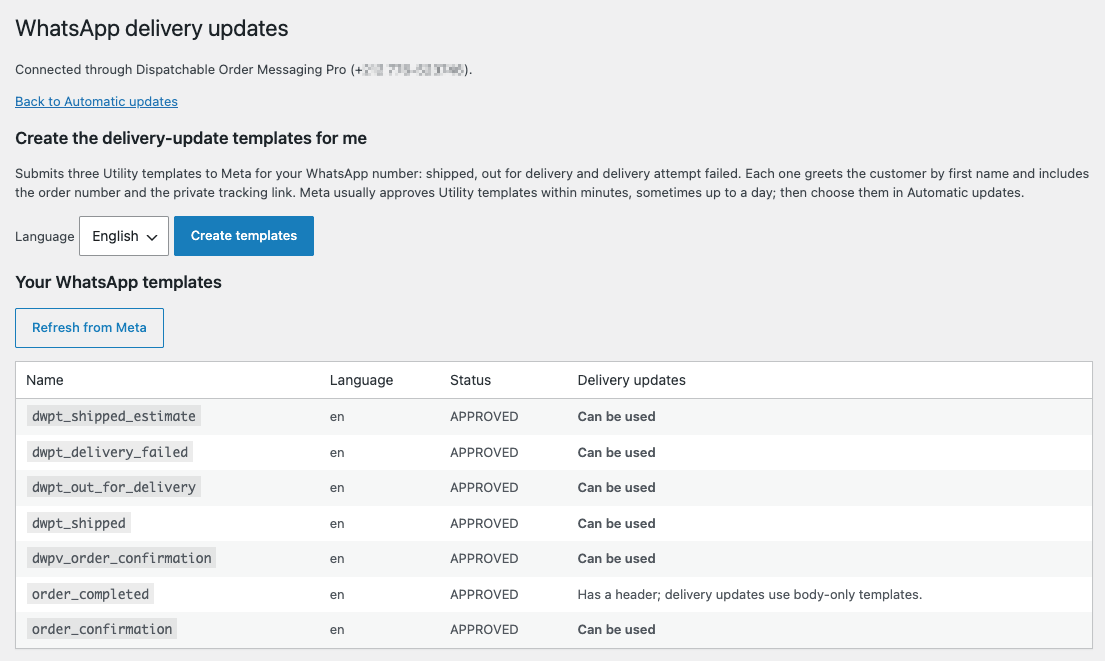
You can also use your own templates. To be usable, a template must be approved, in the Utility category, body-only (no header), with up to four numbered variables in the order above, and no link or code buttons. The templates page says why any template can’t be used.
Choosing a template for each step
Back in Automatic updates, choose a template for Shipped, Out for delivery, Delivery failed and Delivered, or Off for no WhatsApp on that step. Then click Save changes.
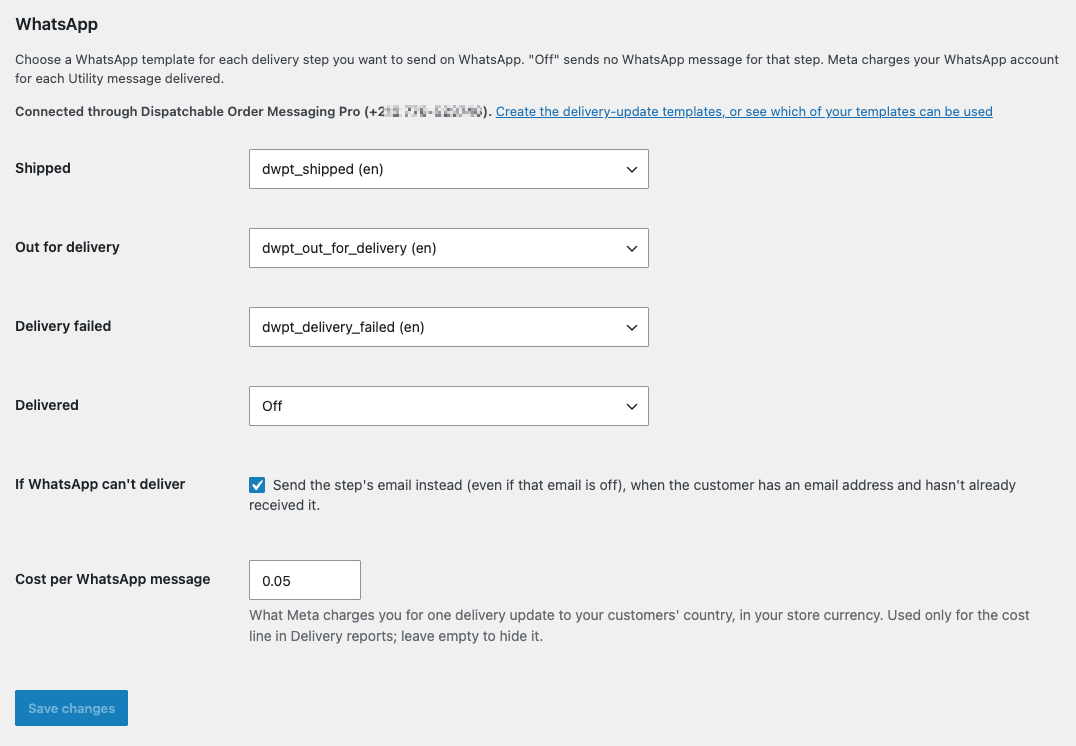
- If a step has both its email on and a WhatsApp template chosen, the customer gets both. If you want WhatsApp only, turn that step’s email off.
- If WhatsApp can’t deliver (on by default): the step’s email is sent instead, even if that email is off, as long as the customer has an email address and hasn’t already received it.
- Cost per WhatsApp message (optional): what Meta charges you for one delivery update in your customers’ country, in your store currency. It’s only used for the cost line in the reports.
What happens when a WhatsApp message is sent
- The number is the order’s billing phone (or shipping phone), turned into an international number with the order’s country calling code, never the number exactly as typed.
- A temporary problem on Meta’s side is tried once more after 10 minutes.
- Anything else (Messaging Pro not ready, no usable phone number, Meta refusing the message, or Meta later reporting it failed) sends the email instead, if If WhatsApp can’t deliver is on.
- Every message also appears in Messaging Pro’s Delivery Log.
Meta bills your WhatsApp account for each delivered Utility message, at its rate for the customer’s country. The plugin doesn’t add any cost of its own.
8. Importing your courier’s spreadsheet
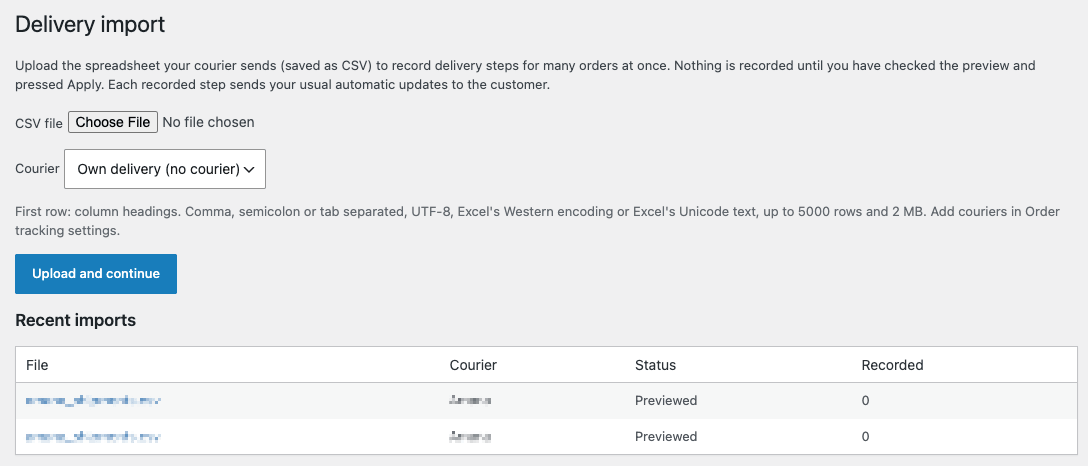
Many couriers send a daily file with each parcel’s status. Instead of clicking through orders one by one, go to WooCommerce → Delivery import. Nothing is recorded until you’ve checked the preview and pressed Apply.
Upload
- Choose the CSV file and the Courier it comes from (from your courier list in the free plugin’s settings, or Own delivery).
- Click Upload and continue.
The first row must be column headings. Comma, semicolon or tab separated; UTF-8, Excel’s Western encoding or Excel’s Unicode text; up to 5,000 rows and 2 MB. An Excel file has to be saved as CSV first (File → Save As → CSV).
1. Columns
- Find the order by: Order number, Tracking number or Phone number, and the column that holds it. Optionally, If not found, try a second one.
- Delivery status: the column with the courier’s status.
- Optional: Tracking number (optional, for Shipped), Note shown to the customer (optional) and Date (optional, shown in the preview only).
If Excel has shortened long numbers (for example 6.12346E+11), this step tells you how many cells look like that. Those numbers lost digits and won’t match: format the column as Text in Excel, then save as CSV again.
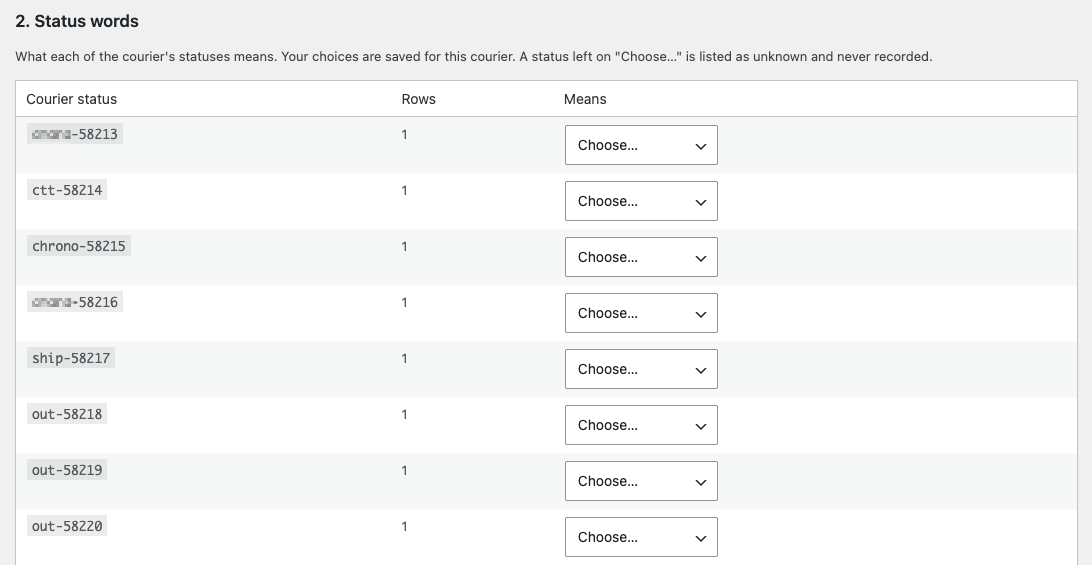
2. Status words
For each status word in the file (for example Livré, Refusé, En cours), choose what it means: Shipped, Out for delivery, Delivered, Delivery failed, Returned, or Ignore these rows. Your choices are saved for this courier, so next time they’re filled in already. Capitals, accents and spaces don’t matter. A word left on Choose… is listed as unknown and never recorded.
3. Preview
Every row is listed with its order, its step and what will happen:
- will be recorded
- order not found
- more than one order matches (not recorded): fix the file or record that order by hand
- unknown courier status (not recorded) and ignored status
- already at this step, older than the order’s latest step and order already Delivered or Returned: a file never moves a delivery backwards, and never changes one that has ended
- order cancelled, refunded or failed
- already imported: importing the same file again records nothing twice
Click Apply: record N delivery steps. The rows are applied in the background; reload the page to see progress. Each row is checked again when it’s applied, in case the order changed meanwhile.
(Put here an image of the import preview, with alt text = “Delivery import step 3, Preview, listing rows with Line, Order, Courier status, Step and Result columns such as will be recorded, order not found and already at this step, with an Apply: record 38 delivery steps button”)
What to know about recorded rows:
- Each recorded step sends your usual automatic updates, exactly like a step you record yourself.
- Order statuses don’t change.
- Steps are recorded at the time you apply the import, not the courier’s date. The date column is shown in the preview only.
- A tracking number from the file is added when the order has none. If the order already has a different one, it’s kept, and the preview says so.
- Matching by phone looks only at orders from the last 60 days that aren’t yet Delivered or Returned, and uses the same “however it was typed” rule as the free plugin’s lookup.
Recent imports lists each file with its status and how many steps were recorded. The file’s rows are deleted 7 days after an import finishes; only the counts are kept.
9. Delivery updates from other systems
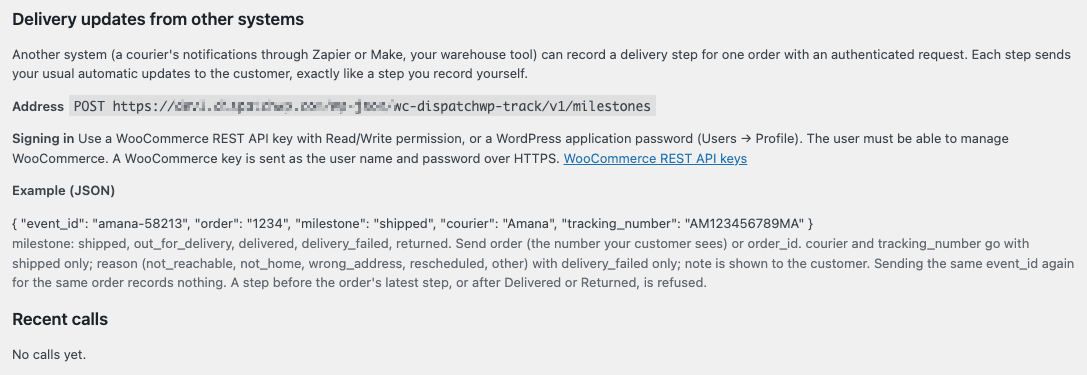
If your courier’s platform, a delivery app or an automation tool (Zapier, Make, n8n) can send web requests, it can record a delivery step for one order. The step then sends your usual automatic updates, exactly like a step you record yourself. The details are under Delivery updates from other systems on WooCommerce → Delivery import.
Address: POST https://yourstore.com/wp-json/wc-dispatchwp-track/v1/milestones
Signing in: use a WooCommerce REST API key with Read/Write permission (WooCommerce → Settings → Advanced → REST API), or a WordPress application password (Users → Profile). The user must be able to manage WooCommerce. A WooCommerce key is sent as the user name and password, over HTTPS.
Example (JSON):
{
    "event_id": "amana-58213",
    "order": "1234",
    "milestone": "shipped",
    "courier": "Amana",
    "tracking_number": "AM123456789MA"
}
The fields:
event_id(required, up to 64 characters): your own ID for this update. Sending the sameevent_idagain for the same order records nothing, so a retry never sends the customer a second message.order(the number your customer sees) ororder_id.milestone:shipped,out_for_delivery,delivered,delivery_failedorreturned.courierandtracking_number: withshippedonly. The courier must be one in your courier list. Leave it out to keep the order’s courier.reason: withdelivery_failedonly, private:not_reachable,not_home,wrong_address,rescheduledorother.note: up to 200 characters, shown to the customer.
The answers:
- 201: recorded.
- 200: already received (same
event_id), or the order is already at this step. Nothing recorded. - 400: a missing or invalid field, or an unknown courier. The message names the field, or lists your couriers.
- 401 / 403: not signed in, or the user can’t manage WooCommerce (or Pro’s license isn’t active).
- 404: order not found.
- 409: the order is cancelled, refunded or failed; the step comes before the order’s latest step; or the delivery has already ended (Delivered or Returned).
The same rules as the import apply: a delivery is never moved backwards, but a new Out for delivery after Delivery failed is allowed. One step per request.
Recent calls lists the last 20 calls from signed-in users, with the user, event ID, order, step and result in plain words. Calls are kept for 30 days. The log never holds the note, the tracking number or anything about the customer.
10. Delivery estimates
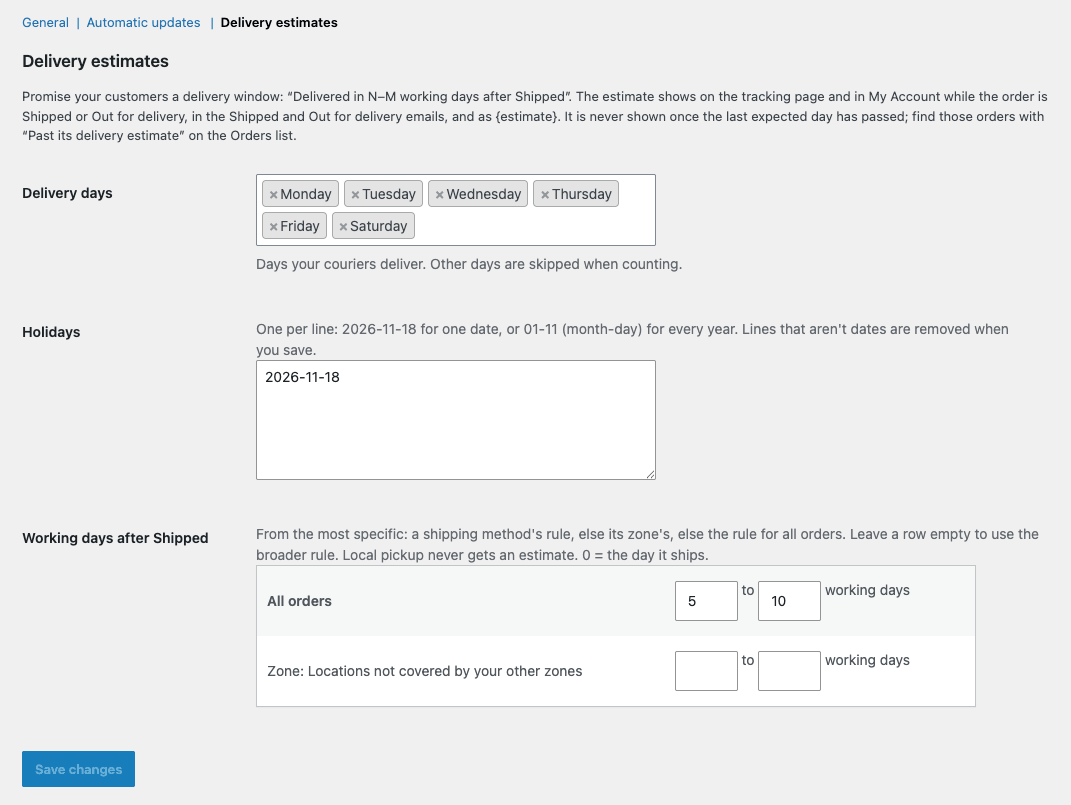
Customers’ real question is “when will it arrive?”. Go to WooCommerce → Settings → Order tracking → Delivery estimates:
- Delivery days: the days your couriers deliver (Monday to Saturday by default). Other days are skipped when counting.
- Holidays: one per line,
2026-11-18for one date or01-11(month-day) for every year. Lines that aren’t dates are removed when you save. - Working days after Shipped: a Fewest working days and Most working days for All orders, for each shipping zone (including “Locations not covered by your other zones”) and for each shipping method. 0 means the day it ships.
Which rule applies
The most specific one: the order’s shipping method’s rule, else its zone’s, else the rule for all orders. Leave a row empty to use the broader rule. Local pickup never gets an estimate.
How it’s counted and shown
- Counting starts on the day the order shipped, in your site’s timezone. That’s a recorded Shipped step, an order status your map shows as Shipped, or a WooCommerce fulfillment.
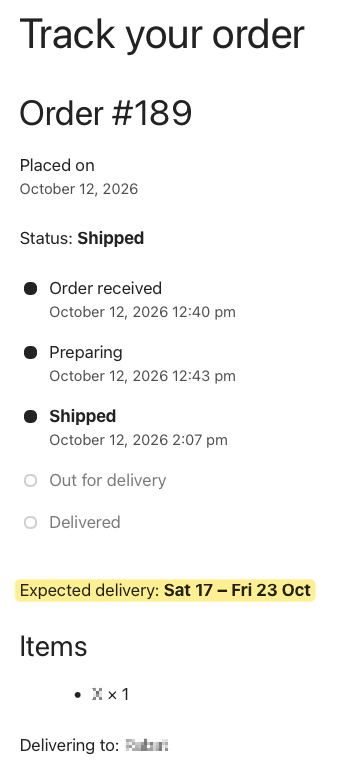
- Customers see “Expected delivery: Thu 8 – Sat 10 Oct”:
- on the tracking page and in My Account (free plugin 0.2.0 or newer), while the order is Shipped or Out for delivery;
- in the Shipped and Out for delivery emails;
- in WhatsApp, with the
dwpt_shipped_estimatetemplate or any template with a fourth variable. When there’s no estimate, WhatsApp shows “to be confirmed” in the template’s language.
- Customers never see an estimate once the last expected day has passed, and it disappears once the order is Delivered or Returned.
- On the order screen, a Delivery estimate box shows the dates, which rule was used, and whether the order is late. If there’s no estimate, it says why.
- On the Orders list, the Past its delivery estimate filter shows orders still on their way after their last expected day.
Two limits worth knowing:
- The Past its delivery estimate filter only includes orders with a recorded Shipped step (from a button, an import or another system). Orders shipped only through an order status or a WooCommerce fulfillment aren’t in it.
- Changing a rule later doesn’t move the dates already saved for that filter. The customer-facing estimate always uses the current rules.
11. Delivery reports
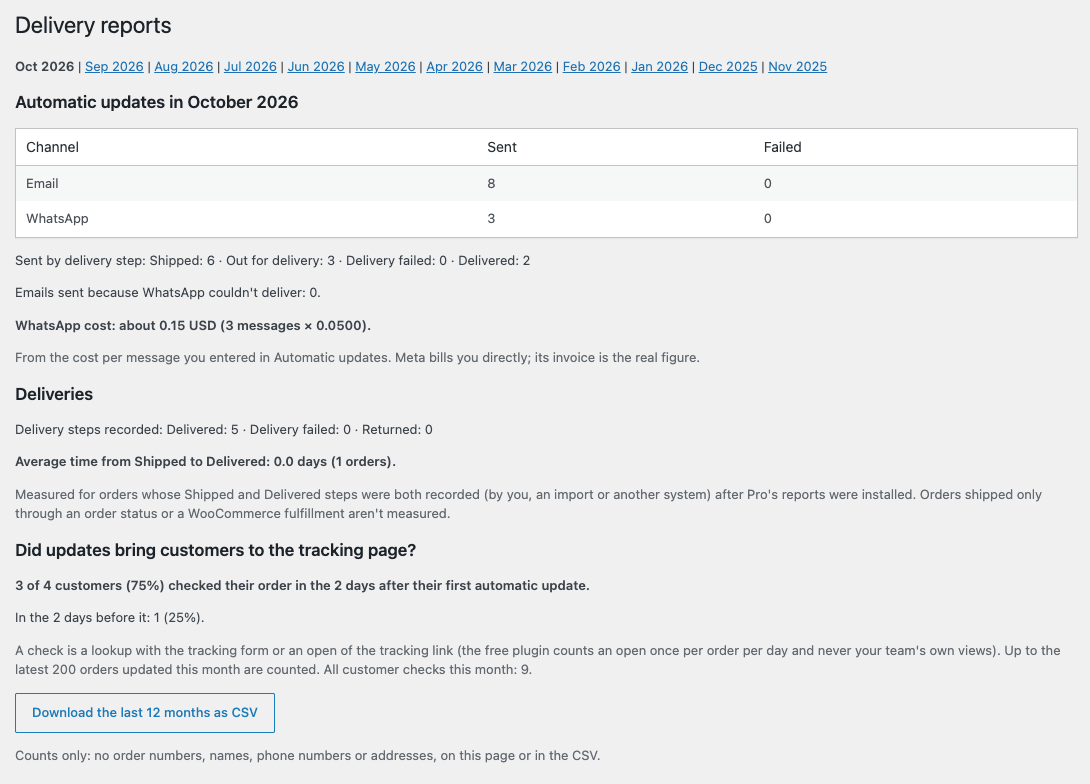
Go to WooCommerce → Delivery reports. It shows one month at a time, for this month and the 11 before:
- Automatic updates: sent and failed, by channel (Email, WhatsApp), and sent by delivery step. Also how many emails were sent because WhatsApp couldn’t deliver.
- WhatsApp cost: about messages × your cost per message, when you’ve entered a cost. Meta’s invoice is the real figure.
- Deliveries: delivery steps recorded (Delivered, Delivery failed, Returned), and the average time from Shipped to Delivered in days. This is measured only for orders whose Shipped and Delivered steps were both recorded after Pro was installed.
- Did updates bring customers to the tracking page? Of the customers who got their first automatic update that month, how many checked their order (a lookup or a link open) in the 2 days after, compared with the 2 days before.
Download the last 12 months as CSV gives one row per month. Counts only: no order numbers, names, phone numbers or addresses, on the page or in the file.
12. Status panel and health checks
The top of Automatic updates shows Automatic delivery updates:
- Last automated update: the last update sent, and the last failure in plain words with what to check.
- Problems in the last 7 days: failed updates, and updates waiting past their time.
- A table of each delivery step with its Email (on/off), an Edit email link and its WhatsApp template.
- Links: See the delivery reports, Run the Pro setup wizard, License & account and Contact support.
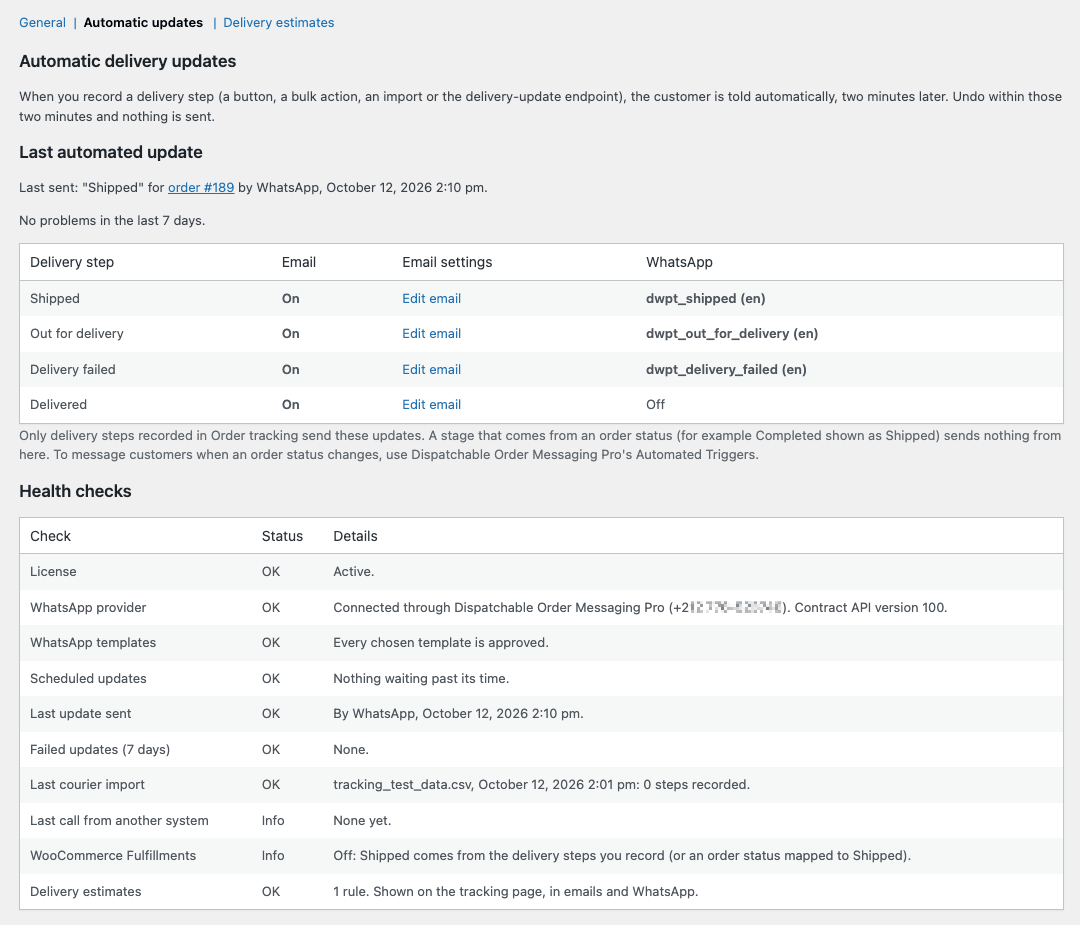
Below it, the Health checks, each marked OK, Check or Info:
- License;
- WhatsApp provider and its contract version;
- WhatsApp templates: whether every chosen template is still approved;
- Scheduled updates: updates waiting more than 30 minutes past their time (usually WP-Cron not running);
- Last update sent and Failed updates (7 days);
- Last courier import and Last call from another system;
- WooCommerce Fulfillments, on or off;
- Delivery estimates: how many rules, and whether the tracking page can show them.
The same checks appear in WooCommerce → Status → System status under Order tracking Pro, so they’re included when you copy your system report for support.
13. Your license: what happens without one
Without an active license (for example after it expires):
- Pro’s screens (Automatic updates, Delivery estimates, Delivery import, Delivery reports, the WhatsApp templates page and the wizard) show an Activate license box instead of their settings;
- new delivery steps send no automatic update;
- the update address answers 403;
- estimates aren’t shown to customers.
What still finishes: updates already waiting to be sent, and an import already being applied. The free plugin keeps working exactly as before, including the share buttons. Reactivating your license restores everything, with your settings kept.
14. Privacy and your data
- Emails go to the order’s billing email, from your own site.
- WhatsApp: the customer’s phone number, first name, order number and private tracking link are sent to WhatsApp (Meta) through your own WhatsApp Business account, to deliver the message.
- Imports: the file’s rows, which can include phone and tracking numbers, are kept for at most 7 days after the import, then deleted. Only counts are kept.
- Update log: Pro keeps a record of which updates were sent (order, step, date, result), without email addresses or phone numbers. Calls from other systems are kept for 30 days, without customer data.
- Pro adds its own suggested wording to Settings → Privacy → Policy Guide.
15. Deactivating or deleting Pro
- Deactivating Pro stops automatic updates, the import, the update address and estimates straight away. Updates still waiting to be sent at that moment may not go out. The free plugin carries on as usual: tracking page, delivery steps and share buttons. Your Pro settings are kept for if you reactivate.
- Deleting Pro from the Plugins screen removes Pro’s tables and settings, including the email settings, saved courier status words and estimate rules. The free plugin’s data stays: delivery steps, notes, tracking numbers and links are untouched.
16. Troubleshooting
Start with the Health checks under Automatic updates. Most problems show up there.
I recorded a step but no email arrived
- Wait two minutes: updates are sent two minutes after the step.
- Check the order notes. A private note says when an update was sent or failed.
- Is that step’s email on in WooCommerce → Settings → Emails? Delivered is off by default, and Shipped is off by default when WooCommerce Fulfillments is on. Returned has no email.
- Was the stage from an order status (for example Completed shown as Shipped)? Status changes never send updates. Record the step in the Order tracking box instead.
- Does the order have a billing email?
- Scheduled updates in the health checks: if updates are waiting past their time, WP-Cron isn’t running. Check WooCommerce → Status → Scheduled Actions.
- If the note says the email failed, it’s your site’s email delivery. An SMTP plugin usually fixes it. Also check the customer’s spam folder.
The customer got both an email and a WhatsApp message
That’s what happens when a step has its email on and a WhatsApp template chosen. For WhatsApp only, turn that step’s email off. With If WhatsApp can’t deliver on, the email still goes out as a fallback when WhatsApp fails.
The customer got two messages for one event
Usually one from Order tracking Pro (a delivery step) and one from Dispatchable Order Messaging Pro’s Automated Triggers (a status change made at the same time). Use one or the other for each moment. See How automatic updates work.
WhatsApp shows “Not available” or “not ready”
- Not available: install and activate Dispatchable Order Messaging Pro.
- Not ready: finish its Meta Cloud API settings and run its Test Connection.
- Too old: update Messaging Pro to 0.3.0 or newer.
My template isn’t in the dropdown
Only approved Utility templates that fit the rules in WhatsApp delivery updates are offered. Open the templates page, click Refresh from Meta, and read the reason next to your template. A newly created template appears once Meta approves it.
WhatsApp messages fail with “no phone number”
The order has no phone number that can be turned into an international WhatsApp number. Check the phone and the billing country on the order. Ideally, customers enter numbers with + and the country code.
Import rows say “order not found” or “more than one order matches”
- Check you picked the right column under Find the order by, and add a second one under If not found, try.
- Long numbers shortened by Excel (
6.12346E+11) can’t match. Format the column as Text and save as CSV again. - Phone matching only covers orders from the last 60 days that aren’t Delivered or Returned.
- For “more than one order”, record that order by hand from its order screen.
The import is stuck on “Applying…”
It runs in the background: reload the page. If it doesn’t move, WP-Cron isn’t running (see the Scheduled updates health check). An import that doesn’t finish in time is marked Not finished and its rows are deleted; upload the file again.
The update address answers 401 or 403
- 401: the request isn’t signed in, or the WooCommerce key is Read only. With a WooCommerce key, use HTTPS, a Read/Write key, and send the key as the user name and password. On a site without HTTPS, use an application password.
- 403: the user can’t manage WooCommerce, or Pro’s license isn’t active.
Calls from signed-in users appear in Recent calls with the result in plain words.
Customers don’t see the delivery estimate
- The tracking page and My Account need the free plugin 0.2.0 or newer. The Delivery estimates section and the health checks say so if yours is older.
- It’s only shown while the order is Shipped or Out for delivery, and never once the last expected day has passed.
- Local pickup orders, and orders with no matching rule, get none. The Delivery estimate box on the order says why.
17. FAQ
Do I need Dispatchable Order Messaging Pro?
Only for WhatsApp updates. Email updates, the import, the update address, estimates and reports all work without it.
Does Pro change my order statuses?
No. Neither Pro nor the free plugin ever changes an order status, and status changes never send these updates.
Can it get updates straight from my courier?
There are no built-in courier connections. Most couriers in cash-on-delivery markets report by spreadsheet, which the import handles. If your courier’s platform or an automation tool can send web requests, it can use the update address.
Does it send SMS?
Not automatically. The free plugin’s SMS share button still works, from your own phone.
What does a WhatsApp update cost?
Meta charges your WhatsApp account per delivered Utility message, at its rate for the customer’s country. Nothing is added by DispatchWP.
What if I click a step by mistake?
Click Undo last step within two minutes and nothing is sent.
Still stuck?
Reach support from Contact support in Pro’s status panel, from your account, or email support@dispatchwp.com. Include the Health checks from the status panel, or your WooCommerce system report. Free plugin question? Ask on the WordPress.org support forum. Anything else, get in touch.