
This guide covers Dispatchable Order Verification for WooCommerce Pro from start to finish: installing and licensing it, the Pro setup wizard, every Pro setting and screen, and how to fix the problems merchants actually run into. It describes version 0.3.0.
What Pro changes. The free plugin gives you the tools, and people make every decision: the customer confirms on a link, and your team works the Confirmation queue. Pro lets the store act on its own:
- it sends confirmation requests by WhatsApp (with Confirm and Cancel buttons) or by email, and email reminders;
- it moves or cancels orders when the customer answers, or doesn’t;
- it refuses blocked customers at checkout;
- it holds duplicates and risky orders for your review;
- it skips confirmation for trusted repeat customers;
- it shows what all this saved you.
Every automatic change is written to the order as a note ending in “Automatic.”, so you can always see what Pro did and why.
Pro builds on the free plugin and needs it installed and active. Everything in the free plugin’s guide still applies, including the Confirmation queue, the confirmation link and page, and the monthly results. This guide covers what Pro adds.
1. Requirements
- WordPress 6.6+, WooCommerce 8.2+, PHP 8.1+.
- The free Dispatchable Order Verification for WooCommerce plugin, installed and active.
- Working email on your site. Pro’s confirmation requests and reminders are sent with your site’s normal email. If your store’s order emails already arrive reliably, you’re fine. If not, an SMTP plugin usually fixes it.
- WordPress’s background tasks running (WP-Cron / Action Scheduler). Reminders and time limits run in the background. This works on almost every host. The health checks warn you if it doesn’t.
- Optional, for WhatsApp confirmation: Dispatchable Order Messaging for WooCommerce Pro 0.3.0 or newer, connected to your Meta WhatsApp Cloud API account with its webhook working. See WhatsApp confirmation.
For email confirmation, no outside account, API key or DispatchWP service is needed. Pro works with the classic and block checkout, and with HPOS and posts order storage.
2. Installing Pro and activating your license
- Make sure WooCommerce and the free Dispatchable Order Verification plugin are both active.
- Download the Pro zip from your purchase email or your DispatchWP account.
- Go to Plugins → Add New Plugin → Upload Plugin, choose the zip, click Install Now, then Activate.
- Enter your license key on the activation screen. If you closed it, go to WooCommerce → Verification analytics, or click Activate license in Pro’s settings.
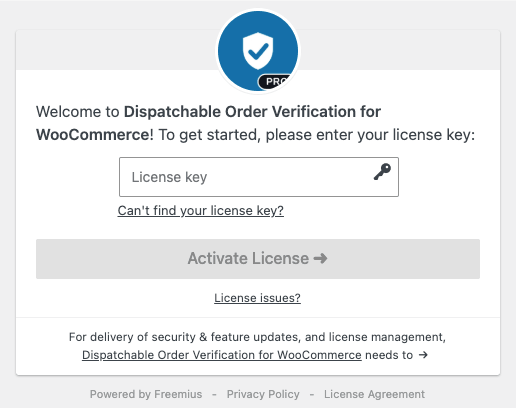
Once Pro is active, its row on the Plugins screen has Settings and Account links. The free plugin stays active; Pro never deactivates it.
If the free plugin is missing, inactive or out of date, Pro doesn’t run. It shows a notice explaining which, and starts again as soon as the free plugin is active.
3. The Pro setup wizard
On a new install, a “Order verification Pro is active.” notice offers Set up Pro. It waits until the free plugin’s own setup is finished or skipped, so you never see two wizards at once.
The wizard has three steps. Every field starts with a sensible value, so you can Skip this step or Exit setup at any point.
- Confirmation requests:
- whether the confirmation email is on (with a link to its email settings);
- the WhatsApp row, which shows whether Dispatchable Order Messaging Pro is found and connected (you choose the WhatsApp template later, in the Pro settings: see WhatsApp confirmation);
- Reminders, Hours between reminders and Time to answer.
- Automatic order status: When the customer confirms, When the customer declines and When there’s no answer in time.
- Protection and savings:
- Trusted customers, High risk, Duplicate orders and what to do with duplicates;
- your Cost of a failed delivery (asked only if you haven’t set it in the free plugin yet);
- Cost per email.
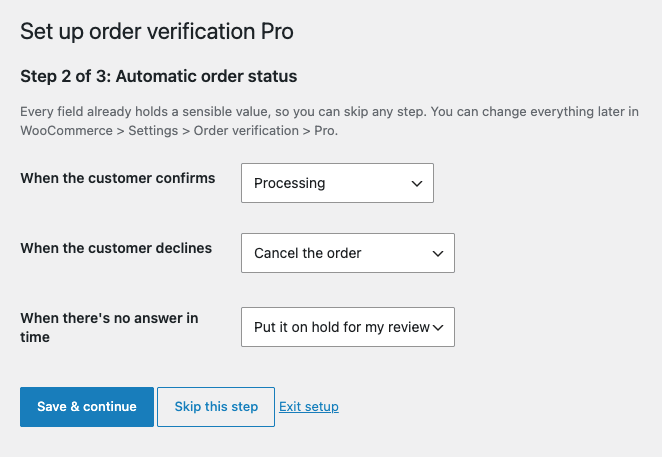
After Save & finish, you land on Pro’s settings with the message “Order verification Pro is set up.” You can run the wizard again any time from the Run the Pro setup wizard link in Pro’s settings.
4. Where Pro’s settings live
Pro adds a Pro section to the free plugin’s settings tab. Go to WooCommerce → Settings → Order verification, then click Pro next to General. It contains, in order:
- Last automated verification: what Pro last did, plus health checks and links to the wizard, analytics, blocklist, license and support (see Status panel);
- Automatic confirmation requests
- WhatsApp confirmation
- Automatic order status
- Blocklist and duplicate orders
- Risk rules
- Analytics
- Customer history
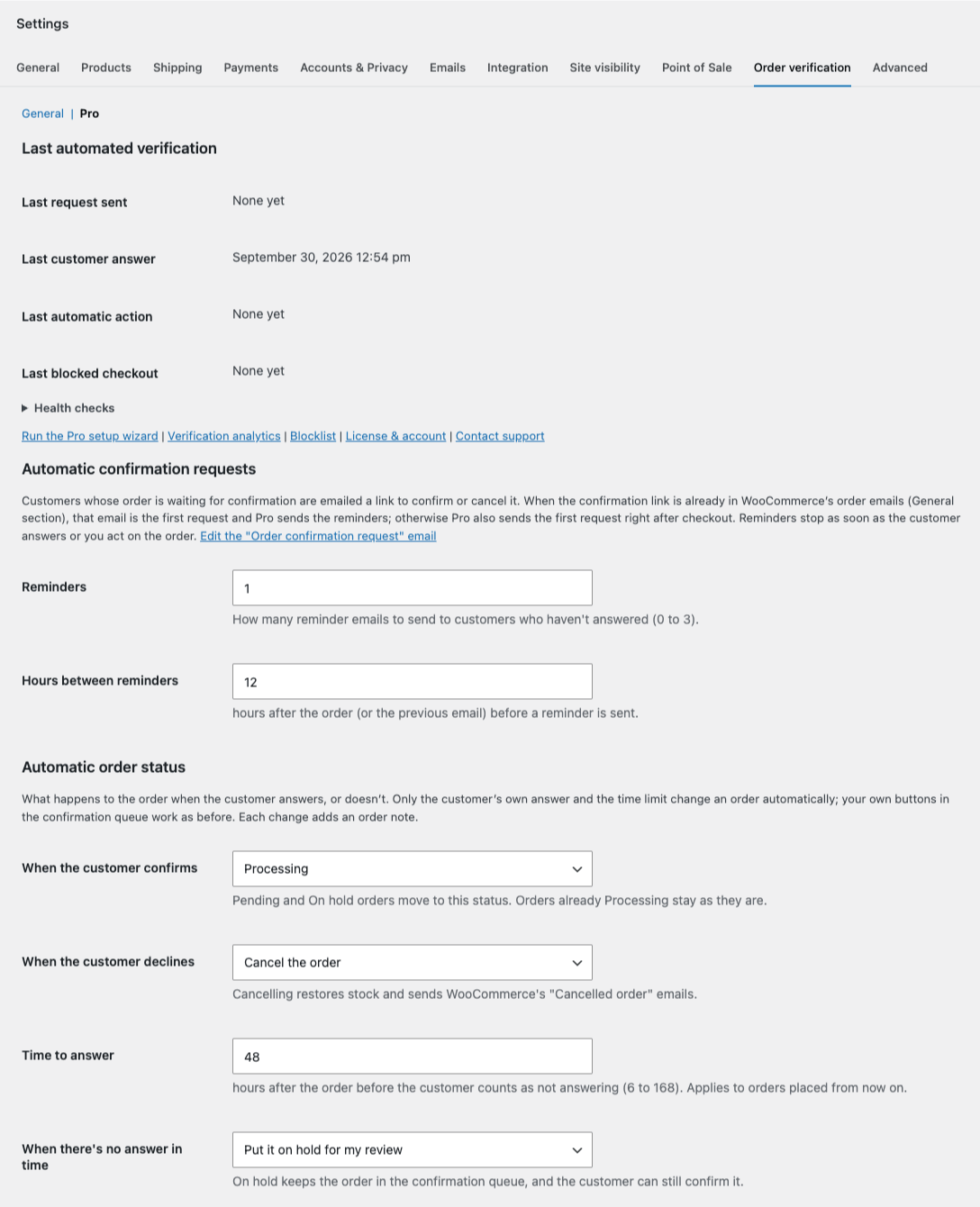
Pro also adds four places of its own:
- WooCommerce → Settings → Emails → Order confirmation request: the email Pro sends.
- WooCommerce → Verification analytics: the analytics page.
- The WhatsApp confirmation page: open it from the Manage WhatsApp templates link in the settings’ WhatsApp confirmation group.
- The Blocklist page: open it from the Manage the blocklist link in the settings, or Blocklist in the status panel.
5. Automatic confirmation requests and reminders
How it works
For every order that’s Awaiting confirmation, Pro emails the customer a link to confirm or cancel it. This is the same link and the same Confirm your order page as the free plugin, so the same safety rules apply: opening the link changes nothing, and it expires after 7 days.
When Pro sends its first email depends on one free-plugin setting:
- The free plugin’s link is in WooCommerce’s order emails (its default): WooCommerce’s own order email already asks the customer to confirm, so that counts as the first request. Pro sends the reminders.
- That setting is off: Pro also sends the first request right after checkout, then the reminders.
- A WhatsApp template is chosen (see WhatsApp confirmation): the WhatsApp message, sent right after checkout, is Pro’s first request. Pro’s emails are the reminders. Email is also used once if WhatsApp can’t be used for an order.
So the customer never gets two requests at once. Reminders stop the moment the customer answers or someone on your team acts on the order.
Settings (Pro → Automatic confirmation requests)
- Reminders: how many reminder emails to send to customers who haven’t answered. Default 1, from 0 to 3.
- Hours between reminders: hours after the order (or the previous email) before a reminder goes out. Default 12, from 1 to 72.
- Edit the “Order confirmation request” email: opens the email’s settings.
The email itself
Go to WooCommerce → Settings → Emails → Order confirmation request. It’s a normal WooCommerce email, styled like your other store emails, with one button to the confirmation page and a short order summary. You can change:
- Enable/disable: turn it off and Pro sends no requests or reminders at all.
- Subject and Email heading for the first request. Defaults: “[{site_title}]: Please confirm your order #{order_number}” and “Please confirm your order”.
- Reminder subject and Reminder heading. Defaults: “[{site_title}]: Reminder: please confirm your order #{order_number}” and “We still need your confirmation”.
- Additional content and Email type (HTML, plain text or multipart).
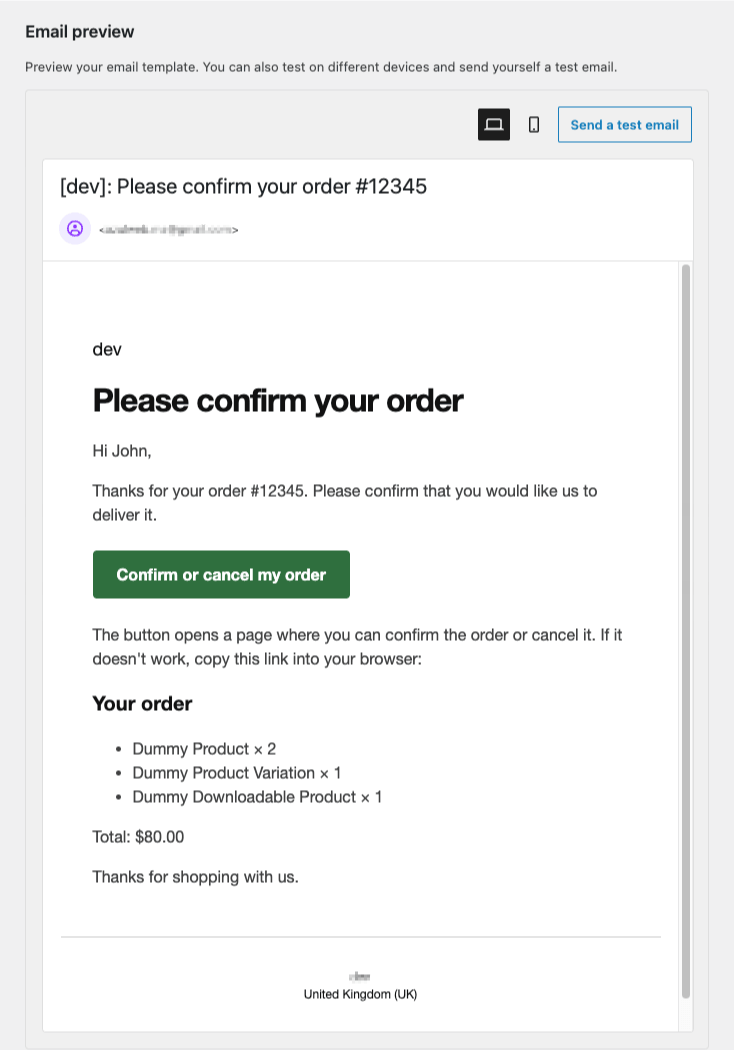
Developers can override the templates in their theme under yourtheme/dispatchable-order-verification-pro/.
If an email can’t be sent (your site’s mail setup refused it), Pro records it on the order and in the status panel. It doesn’t retry that email, but later reminders still go out. If the customer has no email address, nothing is sent and the order notes say so.
6. WhatsApp confirmation
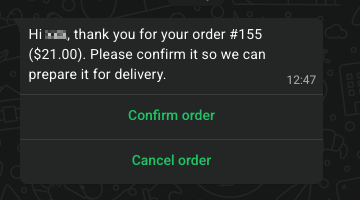
If you also use Dispatchable Order Messaging for WooCommerce Pro, Verify Pro can send each new order that’s awaiting confirmation one WhatsApp message right after checkout, with Confirm and Cancel buttons. The customer answers with one tap, without opening any link.
A tap counts exactly like an answer on the confirmation page. Confirm records Confirmed, Cancel records Declined by customer, and your automatic order status rules then apply. Nothing is sent back to the customer.
Reminders are always emails. WhatsApp confirmation is off until you choose a template, so nothing changes for your store until you set it up.
What you need
- Dispatchable Order Messaging Pro 0.3.0 or newer, active and connected to your Meta WhatsApp Cloud API account. Verify Pro sends through that connection. You don’t enter any Meta details in Verify Pro.
- Its webhook working (Test Connection shows Webhook subscription: active). The customer’s taps reach your site through that webhook. Without it, messages go out, but taps are never received. See the Dispatchable Order Messaging Pro setup guide.
- An approved confirmation template in your WhatsApp Business account. Verify Pro can create it for you (step 1 below).
To check the connection, open the WhatsApp channel health check in Pro’s status panel. When it’s working, it reads “Dispatchable Order Messaging Pro found and connected.”
Step 1: Create the confirmation template
- Go to WooCommerce → Settings → Order verification → Pro. In the WhatsApp confirmation group, click Manage WhatsApp templates.
- Under Create the confirmation template for me, choose the Language of the message: English, French, Arabic or Spanish.
- Click Create the template.
Pro submits a ready-made Utility template, called dwpv_order_confirmation, to your WhatsApp Business account. It contains:
- a short message with the customer’s first name, the order number and the order total;
- two buttons, Confirm and Cancel.
Meta reviews every template. Approval can take from a few minutes to a few days. Until then, the template shows as PENDING. Come back to the page and click Refresh from Meta to see its status.
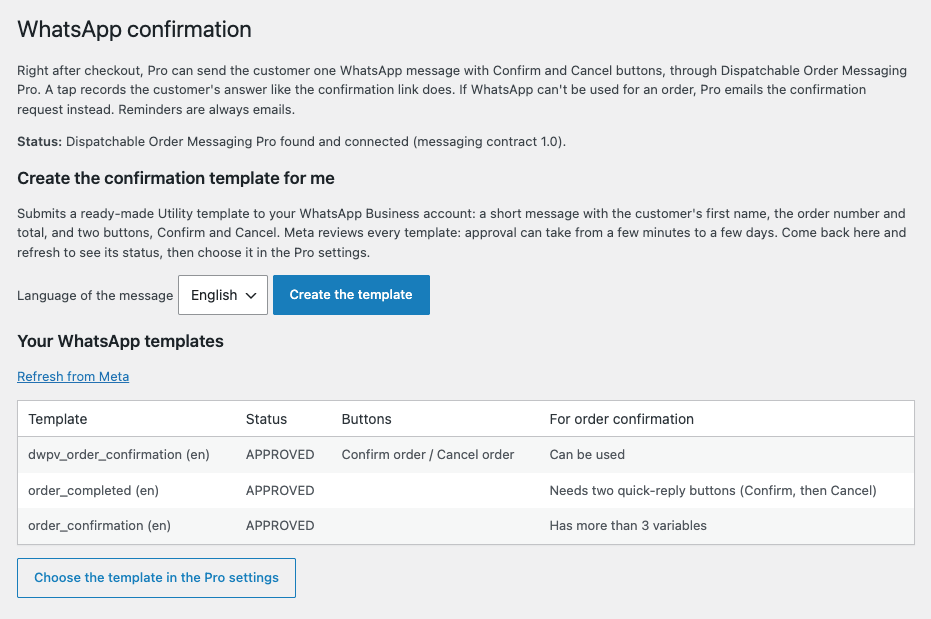
The page also lists Your WhatsApp templates, with each template’s status, its buttons, and whether it can be used For order confirmation (the template in use is marked In use). If one can’t be used, the page says why.
Using your own template instead
You can also create a template yourself in WhatsApp Manager. To be usable, it must:
- be approved by Meta;
- have two quick-reply buttons: Confirm first, then Cancel;
- use numbered variables (
{{1}},{{2}},{{3}}), three at most. Pro fills them with the customer’s first name, the order number and the order total, in that order. Templates with named variables aren’t usable. - have no media header (image, video or document).
Step 2: Choose the template
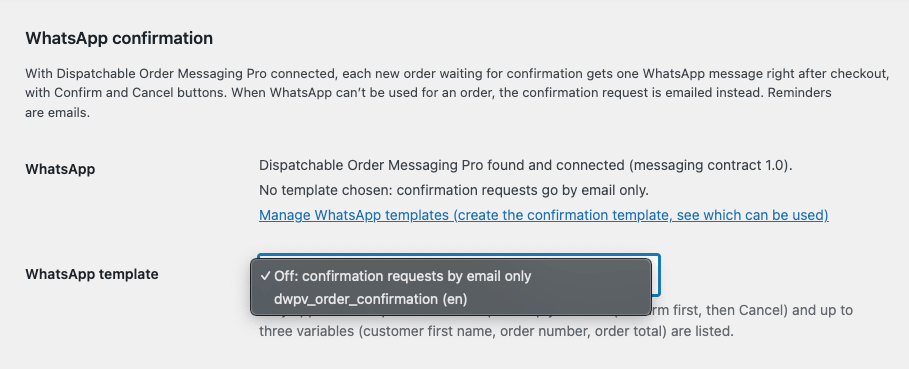
- Back in Order verification → Pro → WhatsApp confirmation, open WhatsApp template. Only usable templates are listed.
- Choose your approved template and click Save changes.
The WhatsApp line above the dropdown then reads “Sending “dwpv_order_confirmation” (en) right after checkout; reminders by email.” To go back to email only, choose Off: confirmation requests by email only.
When WhatsApp can’t be used, email takes over
If the WhatsApp message can’t be used for an order, Pro emails the confirmation request instead, once. That happens when:
- Dispatchable Order Messaging Pro is missing or not connected;
- the order has no phone number WhatsApp can use;
- Meta refuses the message;
- Meta later reports it as not delivered, for example because the number isn’t on WhatsApp.
A temporary problem, such as a network error, Meta’s rate limit or Meta being briefly down, is retried once after 10 minutes before email takes over.
The customer’s phone number is converted to the international format WhatsApp needs, using the order’s billing country. For example, 0612345678 from Morocco becomes 212612345678.
What a tap changes, and what it doesn’t
- One answer only. A tap only counts while the order is still Awaiting confirmation and Pending payment, On hold or Processing. A later tap, or a tap on a message for a different order, changes nothing and is noted on the order.
- Every tap is checked. It must match the message Pro sent for that exact order, and carry Pro’s own signature.
- Review holds work as with the link: a customer’s Confirm doesn’t release an order held for the blocklist, a duplicate or high risk.
- WhatsApp messages and their delivery status also appear in Dispatchable Order Messaging Pro’s WhatsApp Delivery Log.
Cost
Meta bills each WhatsApp confirmation message, a Utility message, directly to your Meta Business account. The price depends on the customer’s country. To see net savings, enter the price as Cost per WhatsApp message under Pro → Analytics (see Verification analytics).
7. Automatic order status
This is where Pro saves your team the most clicks. Only two things change an order automatically:
- the customer’s own answer, on the confirmation page or with a tap on WhatsApp;
- the time limit running out.
Your own buttons in the free plugin’s queue and order screen work exactly as before. Pro adds nothing on top of them.
Settings (Pro → Automatic order status)
- When the customer confirms:
- Pending payment and On hold orders move to the status you choose, by default Processing. You can pick another status, or Don’t change the status.
- Orders already Processing, or further along, stay as they are.
- When the customer declines:
- Cancel the order (default). WooCommerce restores the stock and sends its usual “Cancelled order” emails.
- Or Put it on hold for my review.
- Time to answer: hours after the order before the customer counts as not answering. Default 48, from 6 to 168. This applies to orders placed after you change it.
- When there’s no answer in time:
- Put it on hold for my review (default). The order stays in the Confirmation queue, and the customer can still confirm it. If they do, it moves on automatically.
- Or Cancel the order. This is an explicit choice, because cancelling a real customer’s order by mistake is the one way this product could cost you a sale.
Good to know
- Pro never changes the verification state itself. An order put on hold or cancelled because nobody answered still reads Awaiting confirmation in the free plugin’s column and queue. That’s accurate: nobody confirmed it. The order note and Pro’s order box say what happened.
- Consider turning on the free plugin’s “Start On hold” (Order verification → General → Order flow). Then COD orders wait On hold, and Pro moves them to Processing the moment the customer confirms. Nothing that runs on Processing (fulfilment, shipping, messaging) starts before that.
- An order placed on hold because nobody answered from Pending payment gets WooCommerce’s “On hold” email. The free plugin rewords it to ask for confirmation. From Processing, WooCommerce sends the customer no email.
- Orders that were already waiting before you installed Pro, or before you changed the time limit, keep being handled by hand.
- If someone on your team reopens an order to Awaiting, it gets no new time limit. The customer’s answer still applies.
- Pro checks the order as it is right now before acting. A time limit that fires after the customer already confirmed does nothing. Two actions arriving at once can’t change an order twice.
8. The blocklist
The blocklist lets you stop known fake-order customers, either at checkout or by holding their orders for review. It only applies to the payment methods the free plugin verifies (its Payment methods setting, Cash on delivery by default). Prepaid orders aren’t affected.
Adding customers
- From an order: in the order’s Customer history box, click Block this customer…. Choose which of the customer’s values to add: phone number, email, email domain or IP address.
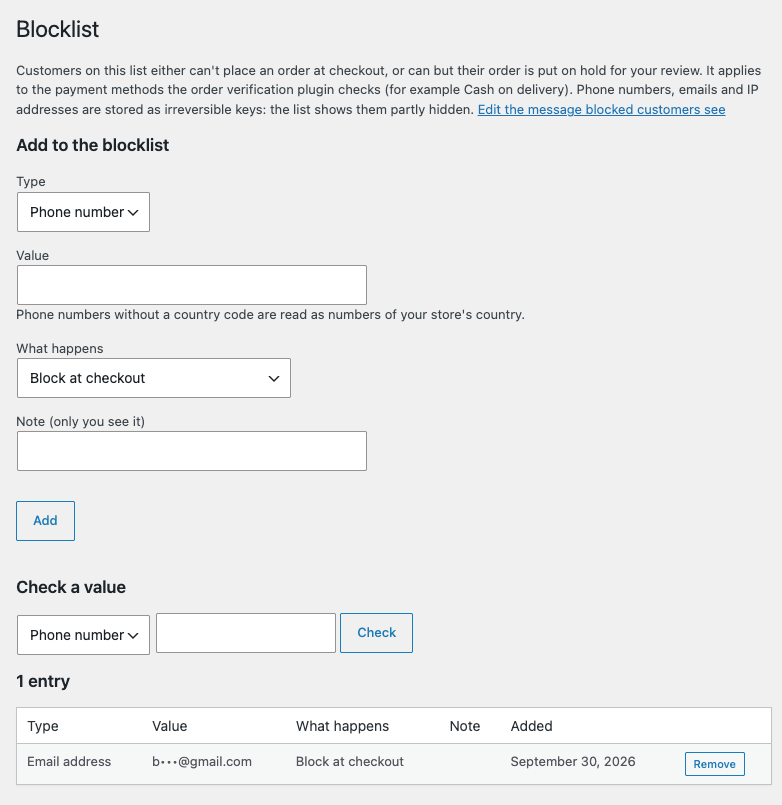
- By hand: on the Blocklist page, under Add to the blocklist, choose the Type, type the Value, choose What happens and add an optional Note (only you see it). Phone numbers typed without a country code are read as numbers from your store’s country.
Be careful with email domains and IP addresses. Many different customers can share them, for example a big email provider or a mobile network. Add those only when you’re sure.
What happens to a blocked customer
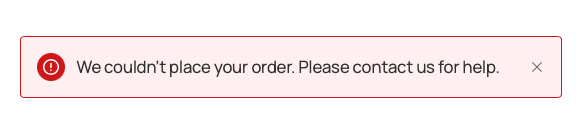
- Block at checkout: the order isn’t placed. The customer sees your Message for blocked customers, by default “We couldn’t place your order. Please contact us for help.” The message never says why. Blocked checkouts are refused on both the classic checkout and the Checkout block. No order, stock reduction or email is created.
- Allow the order, hold it for my review: the order is placed but put On hold for a person to decide. The customer’s own confirmation doesn’t release it.
The Blocklist page
- Lists every entry: Type, Value, What happens, Note, Added (with “from order #…” when relevant) and Remove.
- Phone numbers, emails and IP addresses are stored as irreversible keys, so the list shows them partly hidden, for example
+2126•••••678ora•••@example.com. Nobody can read a full value back, even from the database. - To check whether a specific value is on the list, use Check a value.
- Edit the message blocked customers see links to the setting.
9. Duplicate orders
Customers sometimes order twice by accident, and some fake orders come in bursts. Pro spots a new order from a customer who already has an open order (Pending payment, On hold or Processing) with the same phone number or email, placed within the look-back window.
Settings (Pro → Blocklist and duplicate orders):
- Duplicate orders: on by default.
- Look back: default 24 hours, from 1 to 168.
- When an order looks like a duplicate:
- Put it on hold for my review (default);
- or Cancel the new order. A duplicate Cash on delivery order is cancelled straight away, before any stock is taken or an On hold email is sent.
The earlier order is never changed. A duplicate held for review isn’t released by the customer’s confirmation. A person decides.
10. Risk rules and trusted customers
Every order paid with a verified payment method gets a risk check at checkout, based on simple signals you can see. There’s no black-box score and no outside service.
The signals
- Refused an earlier order on delivery (strong)
- Email almost identical to a blocked one, with dots or “+” ignored (strong)
- Cancelled or declined an earlier order
- Phone number one digit away from a blocked one
- Another open order from the same customer
- Phone number doesn’t look valid for the billing country
- Disposable email address. Pro uses a bundled list of over 9,000 throwaway email domains.
- Unusually large order total
- Unusually many units of one product
The three levels
- High: one strong signal, or any two signals. By default, High-risk orders are put on hold for your review, and the customer’s confirmation won’t release them.
- Medium: one ordinary signal. The order goes through the normal confirmation.
- Low (trusted customer): no signal, and the customer has at least one delivered (Completed) order and has never refused an order or declined a confirmation. By default, trusted customers skip confirmation entirely. Their order is marked Not required, and no link, request or reminder is sent. That means fewer messages to your best customers.
Settings (Pro → Risk rules)
- Trusted customers: skip confirmation for trusted customers. On by default.
- High risk: hold High-risk orders for review. On by default.
- Unusually large total: default 3 times your typical order total, from 2 to 10.
- Your “typical” total is the median of your Processing and Completed orders over the last 90 days, recalculated daily. The setting shows the current figure.
- This check only starts once you have at least 20 such orders.
- Unusually many units: default 5 or more units of one product, from 2 to 100.
The order screen always shows the risk level and exactly which signals fired (see What Pro shows on each order).
11. Customer history
Pro remembers how each customer’s orders ended, so you can see at a glance who’s reliable. Customers are matched by phone number or email. The same number typed differently, for example 0612… and +212 612…, counts as the same customer.
When you first activate Pro, it reads your earlier orders in the background, within the retention period. A note on the order screen says so while it’s still running.
Settings (Pro → Customer history):
- Refused on delivery: the order statuses you use when a customer refused the parcel or it came back. Default Failed. Completed orders count as delivered.
- Keep history for: default 24 months, from 1 to 120. Older history is deleted automatically every day.
Phone numbers and emails are stored only as irreversible keys, never as readable data.
12. What Pro shows on each order
Pro adds two boxes to every order’s edit screen, below the free plugin’s Order verification box.
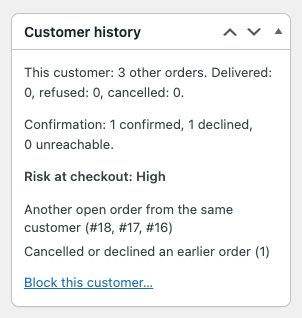
Customer history
- The customer’s record, e.g. “This customer: 6 other orders. Delivered: 5, refused: 1, cancelled: 0.” and “Confirmation: 4 confirmed, 1 declined, 0 unreachable.”, or “First order from this customer.”
- Risk at checkout: Low, Medium or High, with the list of signals that fired.
- On the blocklist lines, if any of the customer’s values are listed.
- The Block this customer… link.
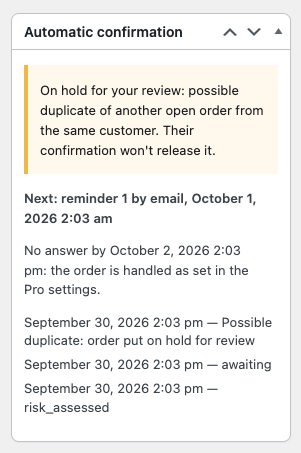
Automatic confirmation
- What’s coming next, e.g. “Next: reminder 1 by email, 30 September 2026 14:00”, and when the time limit runs out.
- Everything Pro has done for this order, newest first, e.g. “Confirmation request sent on WhatsApp”, “Customer tapped Confirm on WhatsApp”, “Email used instead of WhatsApp: …”, “Confirmation request emailed” or “Customer confirmed: order moved to Processing”.
- A clear notice when the order is On hold for your review, and why:
- the customer declined;
- they matched the blocklist;
- high risk;
- a possible duplicate;
- no answer in time.
The notice also says whether the customer’s confirmation will release the order.
- For trusted customers and orders that don’t need confirmation, it says that nothing is sent automatically.
Every automatic change also appears in the order notes, starting with “Order verification Pro:” and ending with “Automatic.”
13. Verification analytics
Go to WooCommerce → Verification analytics. It shows one calendar month at a time, this month or any of the 11 before it, using your site’s timezone. It covers:
- Savings (net). This is failed deliveries avoided × your Cost of a failed delivery, minus Pro’s emails × your Cost per email and Pro’s WhatsApp messages × your Cost per WhatsApp message. The formula is written out on the page.
- “Failed deliveries avoided” is the free plugin’s number (declined or cancelled as unconfirmed, and not confirmed afterwards) plus orders Pro cancelled because nobody answered. The free plugin’s own panel doesn’t count those, so Pro’s figure can be higher. The page explains the difference.
- Checkouts refused by the blocklist are counted but not priced.
- Confirmation results: of the orders that needed confirmation this month, how many were confirmed by the customer, declined by the customer, decided by your team, held for no answer, cancelled for no answer, or are still waiting. It also shows the typical (median) time to answer.
- How customers answered: by channel, and whether they answered before any Pro email, after Pro’s request, or after reminder 1, 2 or 3. This shows what your reminders actually bring in.
- WhatsApp requests sent / emailed instead / taps received, when WhatsApp confirmation is on.
- What Pro did this month:
- emails sent and failed;
- orders moved or held after answers or no answer;
- checkouts refused;
- review holds by reason;
- duplicates cancelled;
- risk levels;
- how many trusted customers skipped confirmation.
Download this month as CSV gives one row per order that needed confirmation: what happened, how and how fast. It contains order numbers only, no customer details.
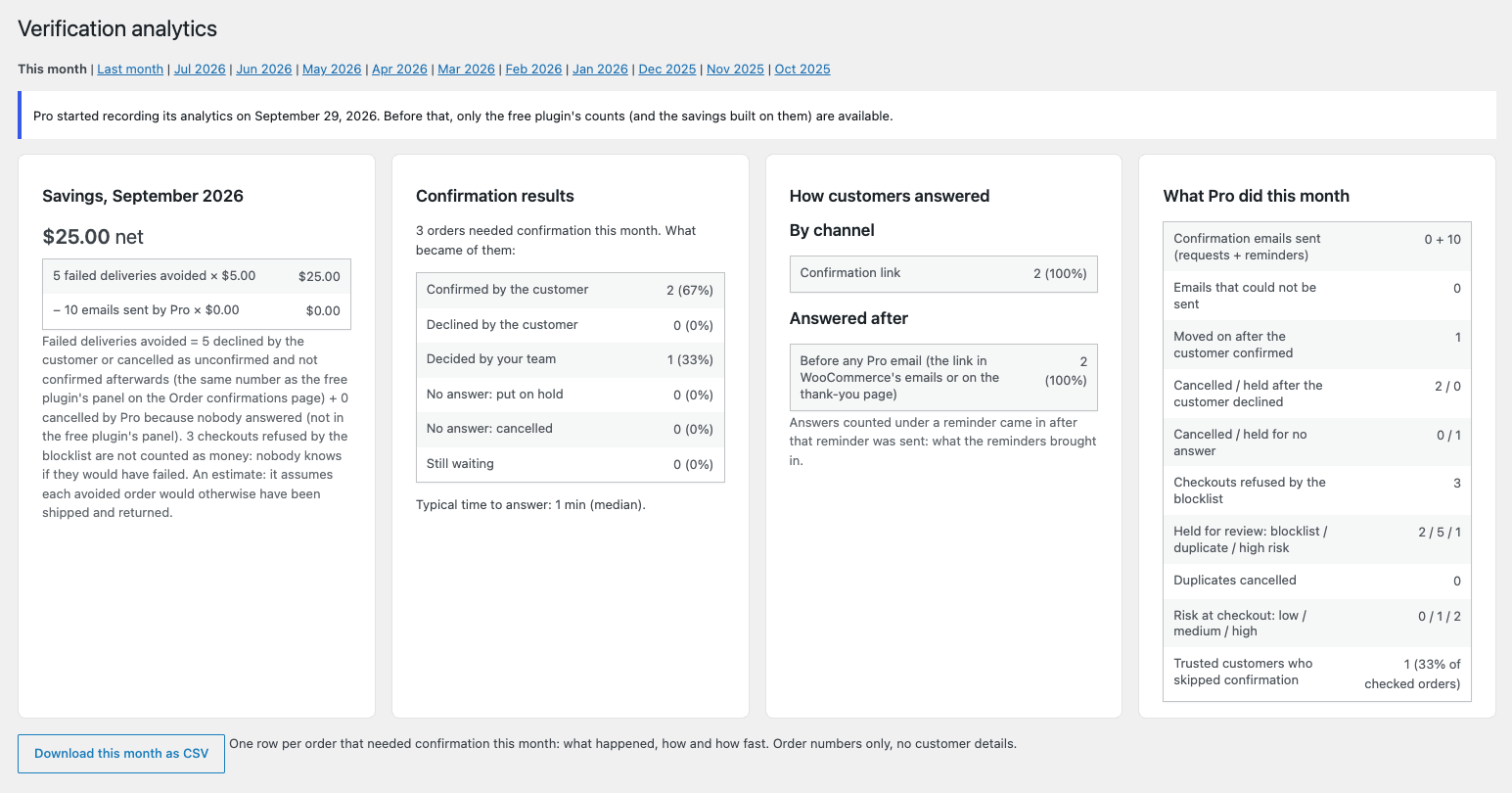
Analytics start from the day Pro was installed. For earlier months, the page tells you only the free plugin’s counts are available.
14. Status panel and health checks
The Last automated verification panel at the top of Pro’s settings shows at a glance:
- Last request sent, Last customer answer, Last automatic action and Last blocked checkout.
- Any problem in plain words, e.g. the confirmation email being turned off, or the last email failing to send.
- Health checks, each marked OK, Check, Problem or Info:
- versions;
- license;
- Pro’s tables;
- background jobs running on time;
- orders past their time limit;
- failed jobs in the last 7 days;
- the confirmation email;
- the WhatsApp channel: whether Dispatchable Order Messaging Pro is connected, which template is in use, and the last WhatsApp request;
- last customer answer;
- typical order total;
- the disposable email list;
- customer history.
- Links: Run the Pro setup wizard, Verification analytics, Blocklist, License & account and Contact support.
The same checks appear in WooCommerce → Status → System status, so they’re included when you share your system report with support.
If Pro’s background jobs (reminders, time limits) are more than an hour late, a warning appears on the Orders screens and the verification screens with a link to the late jobs. You can Hide for a day.
15. Your license: what happens without one
Pro needs an active license to act on new orders. If your license isn’t active:
- Pro’s screens (the Pro settings, Verification analytics, the Blocklist and the Pro wizard) show “Order verification Pro needs an active license.” with an Activate license button. Your settings are kept.
- New orders get no Pro handling: no blocklist check, no review/duplicate/risk hold, no trusted-customer skip, no confirmation request or reminder, no time limit. A customer’s answer doesn’t change the order status.
- Orders Pro was already handling are finished as usual. Their reminders and time limits still run, and the customer’s answer still moves them on.
- The free plugin keeps working exactly as always. Customer history, analytics recording and privacy tools keep running in the background.
Manage your license, invoices and renewals from License & account in the status panel, or the Account link on the Plugins screen.
16. Privacy and your data
- No outside service: everything stays in your own database.
- Customer history and the blocklist store phone numbers, emails and IP addresses only as irreversible keys. Email domains are stored as typed, since they aren’t personal data. Pro’s event records never keep email addresses or phone numbers.
- WhatsApp messages and the customer’s replies are also logged by Dispatchable Order Messaging Pro, under its own privacy export/erase and retention rules.
- WordPress’s privacy tools (Tools → Export / Erase Personal Data) include Pro’s data:
- An export includes the customer’s history rows (with the risk check) and any blocklist entries matching them.
- An erase deletes the customer’s history.
- Blocklist entries are kept on erasure, as fraud prevention. The eraser reports them as retained, and the suggested privacy-policy text says so.
- Pro suggests wording for your privacy policy under Settings → Privacy → Policy Guide.
17. Deactivating or deleting Pro
- Deactivating Pro stops everything automatic straight away: requests, reminders, time limits, checkout checks and holds. Your settings and data are kept. The free plugin keeps working. Orders Pro had put on hold stay on hold, so move them on by hand.
- Deleting Pro from the Plugins screen removes all of Pro’s data:
- its settings and its email’s settings;
- customer history, events and blocklist tables;
- its data on orders;
- its scheduled jobs.
The free plugin’s data is never touched.
18. Troubleshooting
Start with the Last automated verification panel and its Health checks (Order verification → Pro). Most problems show up there in plain words.
Customers aren’t getting confirmation emails or reminders
- Is the Order confirmation request email enabled? Check WooCommerce → Settings → Emails. The panel warns you when it’s off.
- With the free plugin’s link in order emails (its default), Pro’s first email is a reminder, sent after Hours between reminders (12 by default). An order placed an hour ago won’t have received a Pro email yet. That’s expected.
- If Reminders is 0 and the free link is in order emails, Pro sends no emails at all.
- Is the order still Awaiting confirmation and Pending payment, On hold or Processing? Emails stop once someone answers or acts.
- If the panel shows “The last confirmation email … was not sent”, your site’s email isn’t working. Test it with an SMTP plugin, which usually fixes it.
- Emails arriving in spam is also an email-setup matter. An SMTP plugin with your domain’s settings usually helps.
Customers aren’t getting the WhatsApp message
- Check the WhatsApp channel health check and the order’s Automatic confirmation box. If email was used instead, the box says why, e.g. “Email used instead of WhatsApp: no WhatsApp template is chosen”.
- Is a template chosen under Pro → WhatsApp confirmation? With Off, requests go by email only.
- Is Dispatchable Order Messaging Pro 0.3.0 or newer, active and connected? Run its Test Connection.
- WhatsApp messages only go to orders that get Awaiting confirmation at checkout. Trusted customers skip confirmation, so they get nothing.
- If Meta refused the message, its reason appears in the order’s box, in the health check and in Dispatchable Order Messaging Pro’s logs. A common one is the customer’s number not being on WhatsApp, in which case the email went out instead.
The customer tapped Confirm, but nothing changed
- Taps arrive through Dispatchable Order Messaging Pro’s webhook. If messages are delivered but no tap is ever recorded, the webhook isn’t reaching your site. Run its Test Connection and check for Webhook subscription: active. Also check that the
messageswebhook field is subscribed in your Meta app. See the Dispatchable Order Messaging Pro setup guide. - If the order’s box says “WhatsApp reply ignored: …”, the tap arrived but couldn’t count, usually because the order had already been answered or handled.
- If the tap was recorded but the order stayed On hold, it was held for the blocklist, a duplicate or high risk. The customer’s confirmation doesn’t release those holds.
My WhatsApp template isn’t in the dropdown
- It’s probably still waiting for Meta’s approval. Open the WhatsApp confirmation page and click Refresh from Meta.
- The page’s template list says why a template can’t be used. For example, it may not be approved yet, use named variables, have more than three variables or a media header, or not have Confirm and Cancel quick-reply buttons in that order. The simplest fix is Create the confirmation template for me.
- If creating it says the template already exists in that language, click Refresh from Meta to see it in the list.
Reminders or time limits are late, or never happen
These run as WordPress background tasks. If the Background jobs health check or the late-jobs warning shows late jobs:
- WP-Cron probably isn’t running. This is common on sites with very little traffic, or where hosting has turned WP-Cron off without adding a real cron job.
- Ask your host to run WordPress’s cron on a schedule.
- See WooCommerce → Status → Scheduled Actions (group
dispatchwp-verify-pro) for pending and failed jobs, and why.
The customer confirmed, but the order didn’t move to Processing
- Pro only moves Pending payment and On hold orders. A COD order is usually already Processing, unless the free plugin’s Start On hold is on, so it stays there, confirmed.
- Check When the customer confirms. Is it set to “Don’t change the status”?
- Orders held for the blocklist, a duplicate or high risk aren’t released by the customer’s confirmation, by design. The order’s Automatic confirmation box says so. Review it and move it on yourself.
- Check the license. Without an active license, new orders get no Pro handling.
An order was put on hold and I don’t know why
Open the order. The Automatic confirmation box says “On hold for your review: …” with the reason, and the order notes have the full sentence. The Customer history box lists the risk signals that fired.
A cancelled order still says “Awaiting confirmation”
That’s expected when Pro cancelled it because nobody answered (the opt-in “Cancel the order” for no answer). Pro changes the order’s status, not the verification state, because nobody actually confirmed or declined. Pro’s analytics count these orders in the savings. The free plugin’s monthly panel doesn’t.
A real customer was blocked at checkout
- Use Check a value on the Blocklist page with their phone number or email, and remove the entry.
- Check whether you blocked an email domain or IP address that many people share.
- The customer only sees your neutral message, so they may contact you for help.
Too many orders are flagged High risk
- Look at which signals fire in the Customer history box.
- If “Unusually large order total” or “Unusually many units” fires a lot, raise Unusually large total or Unusually many units.
- If “Refused an earlier order on delivery” looks wrong, check Refused on delivery. Only statuses you really use for refused parcels should be selected.
- You can also turn High risk off: the risk level is still shown, but orders aren’t held.
A good customer was asked to confirm again
Trusted-customer skipping needs at least one Completed order, no refusals or declines, and no signal on this order. It also only knows the orders in the history. Right after installing Pro, the background read of earlier orders may still be running.
“Unusually large order total” never fires
It needs at least 20 Processing or Completed orders in the last 90 days to know your typical total. The setting and the Typical order total health check show where you stand.
Verification analytics shows a license screen
Your license isn’t active on this site yet. Activate it there. Your data is kept.
“Order verification Pro is not running” / Pro does nothing at all
The free Dispatchable Order Verification plugin is missing, inactive or out of date. The notice says which. Install or activate it, and Pro starts again.
19. FAQ
Does Pro replace the free plugin?
No. Pro requires the free plugin and builds on it. The Confirmation queue, the confirmation link and page, your team’s buttons and the monthly results all stay the free plugin’s.
Can Pro send confirmation requests on WhatsApp?
Yes, together with Dispatchable Order Messaging Pro 0.3.0 or newer. The customer gets one WhatsApp message right after checkout with Confirm and Cancel buttons, and reminders are emails. See WhatsApp confirmation.
Do I need to set up Meta again for Verify Pro?
No. Verify Pro sends through Dispatchable Order Messaging Pro’s existing connection. It uses the same WhatsApp number, the same Meta account and the same webhook. You only create or choose the confirmation template.
Does Pro ever cancel orders without asking me?
Only in the cases you choose:
- when the customer declines (the default: they told you they don’t want it);
- when there’s no answer in time, only if you opt in;
- for duplicates, only if you opt in.
Everything else is a hold for your review.
Does it change my checkout?
Only for customers on your blocklist set to “Block at checkout”. They see a neutral message instead of placing the order. Everyone else checks out exactly as before.
Does my customers’ data go through DispatchWP?
No. Everything happens on your own site. Emails go out through your site’s normal email.
Can I adjust everything later?
Yes. Every choice is under WooCommerce → Settings → Order verification → Pro, and you can re-run the Pro wizard any time.
What if Pro isn’t right for my store?
Pro comes with a 14-day money-back guarantee on your first purchase.
Still stuck?
Reach support from Contact support in Pro’s status panel, from your account, or email support@dispatchwp.com. Include the Health checks from the status panel, or your WooCommerce system report. Free plugin question? Ask on the WordPress.org support forum. Anything else, get in touch.